If you are conducting a moderated study with your participants, you will have to ensure your moderator and participants select time slots for the studies they will be participating in. Userlytics’ study builder makes it easy and intuitive to schedule moderated sessions with your participants.
How Do I Schedule my Moderated Session(s)?
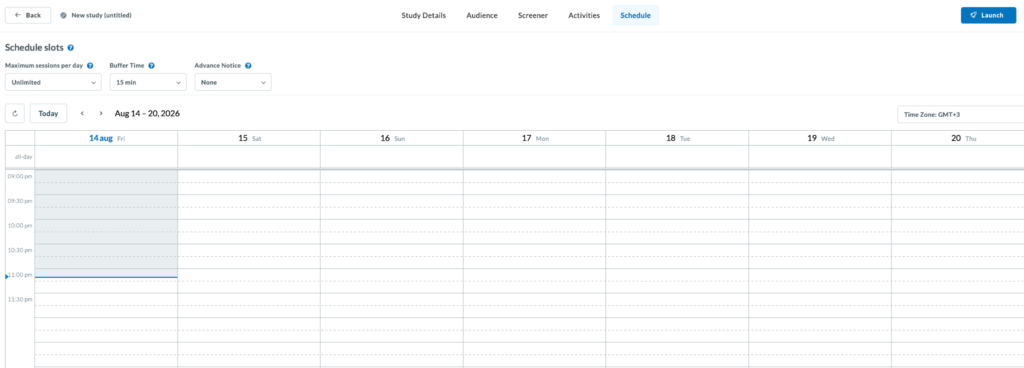
- To schedule the date and time of your moderated study, click on “Schedule” from within the menu at the top of the study builder. Then, a calendar will appear. You can select the correct timezone by using the drop-down menu in the top right corner.
Now, click on any available time slots within the calendar to schedule a moderated session during that time.
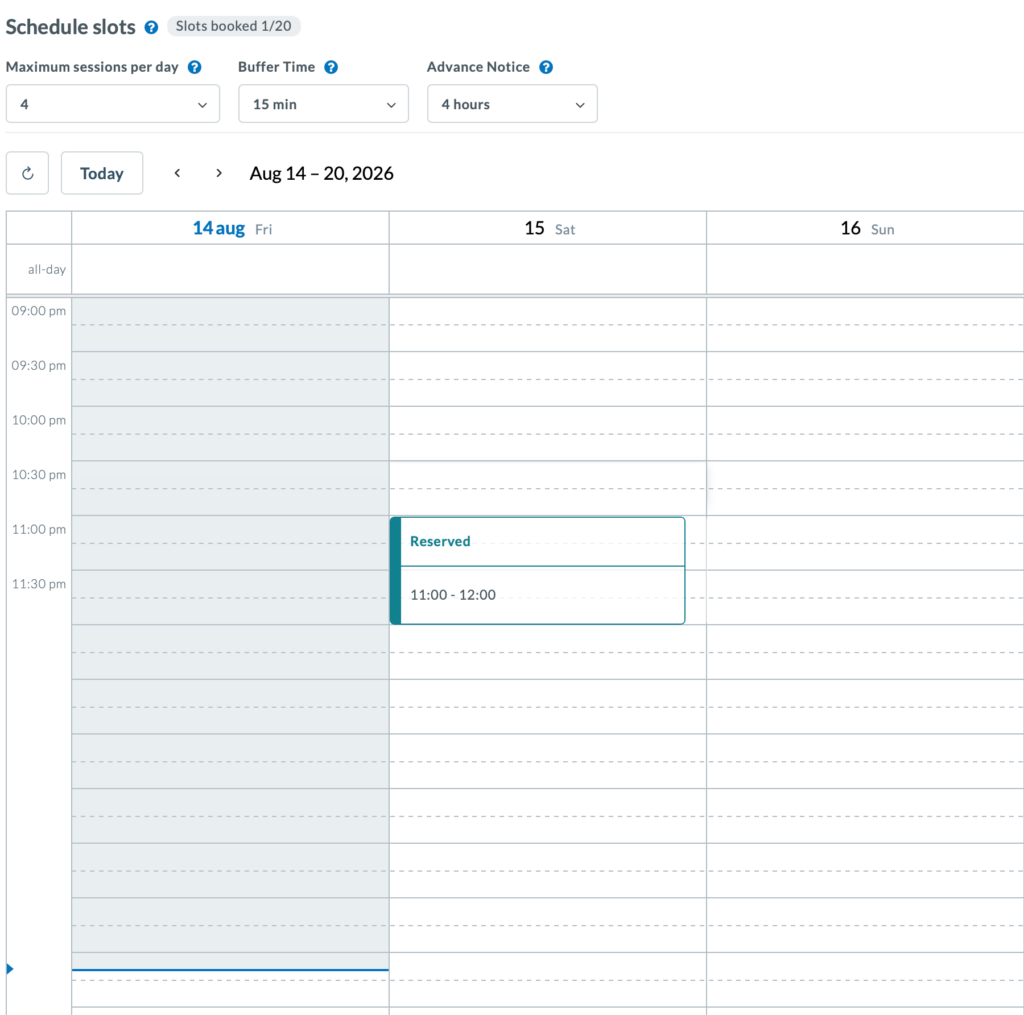
After Scheduling a session, a new block will appear on your calendar indicating the open moderated session you have scheduled. When participants are invited to your usability study, they will be able to choose from all the open moderated sessions you have created based on their availability. We highly recommend adding more slots than the number of participants you’re looking to test with, in order to provide more flexibility.
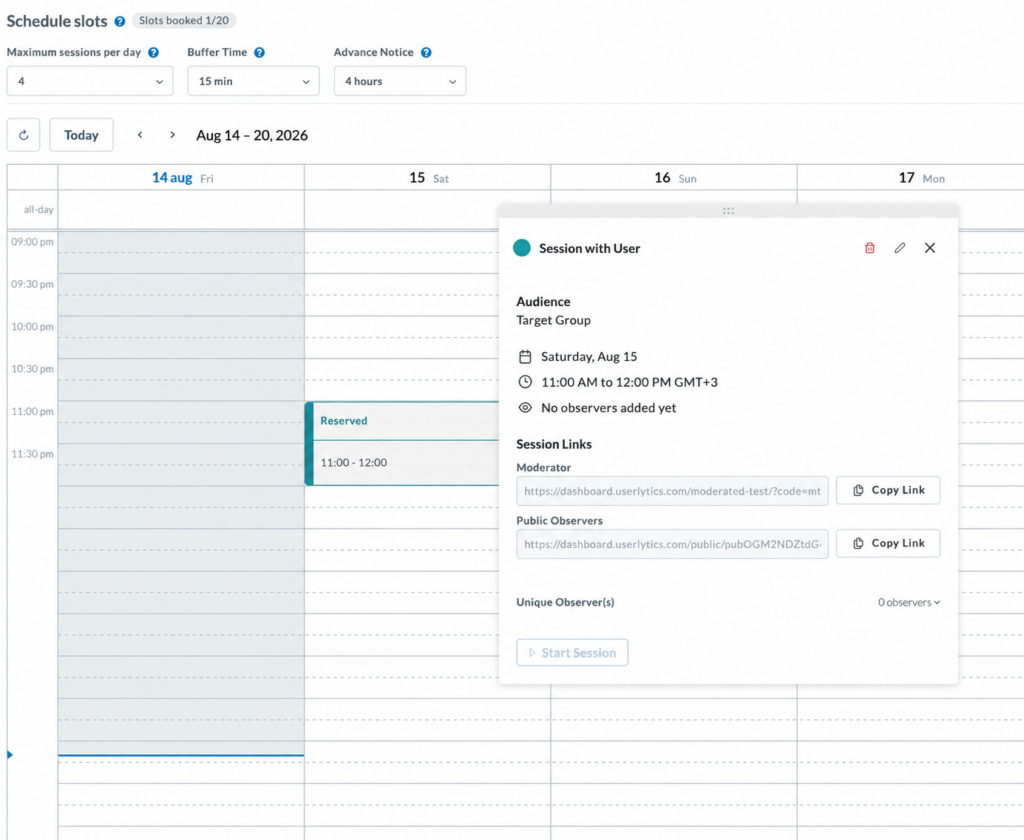
Selecting the block on the calendar will open up a new dialog box that shows information about that moderated study session, including the date and time, any invited observers, and whether or not a participant has booked your session yet. You can click the “Edit” pen button on the top right corner of the window to change any session details, and click the trash can icon to delete the session.
Once invited to your moderated study, your participants will be able to choose from all the open testing sessions you designate. Once they choose a specific session, you will receive a notification and will be able to add the testing session to your personal calendar.
Can I add observers to my Moderated Session(s)?
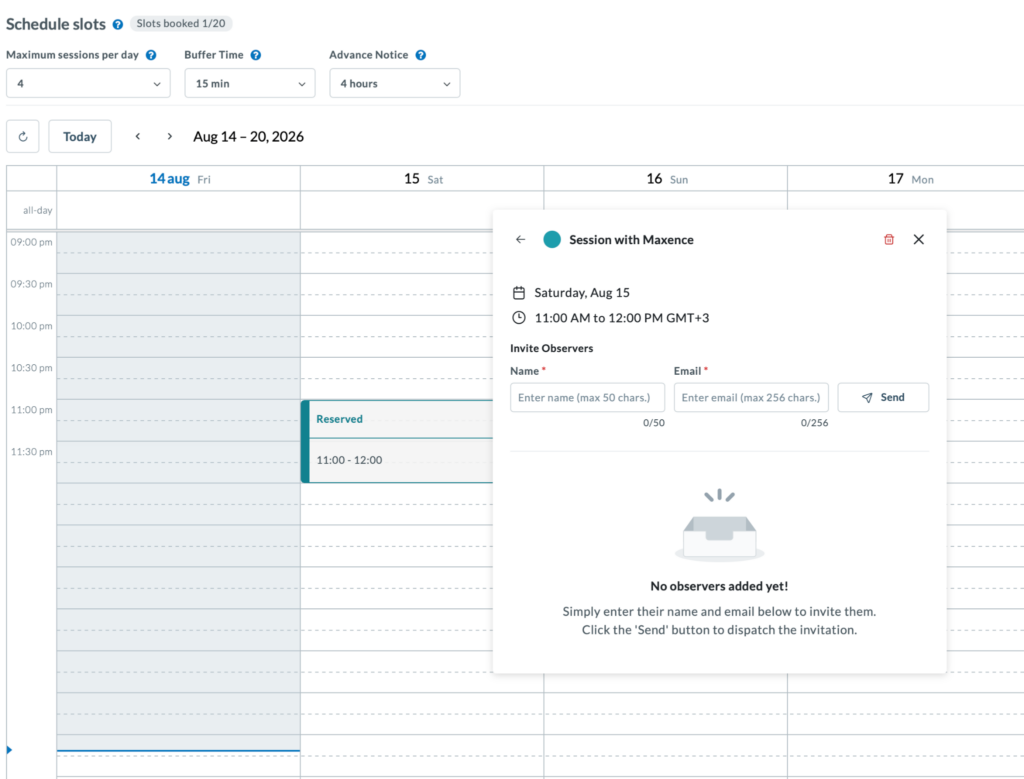
Yes, you can add any of your colleagues or stakeholders as observers in any Moderated session. They don’t need to have a Userlytics account created and they will be hidden in the background with the ability to hear everything in the session. Observers will always be muted by default when they join a session but they can unmute themselves on demand. Observers will also have the ability to communicate through chat with the Moderator and add notes in the session.
To add an observer click on any time slot you have in your calendar and click on the edit button in the top right corner.
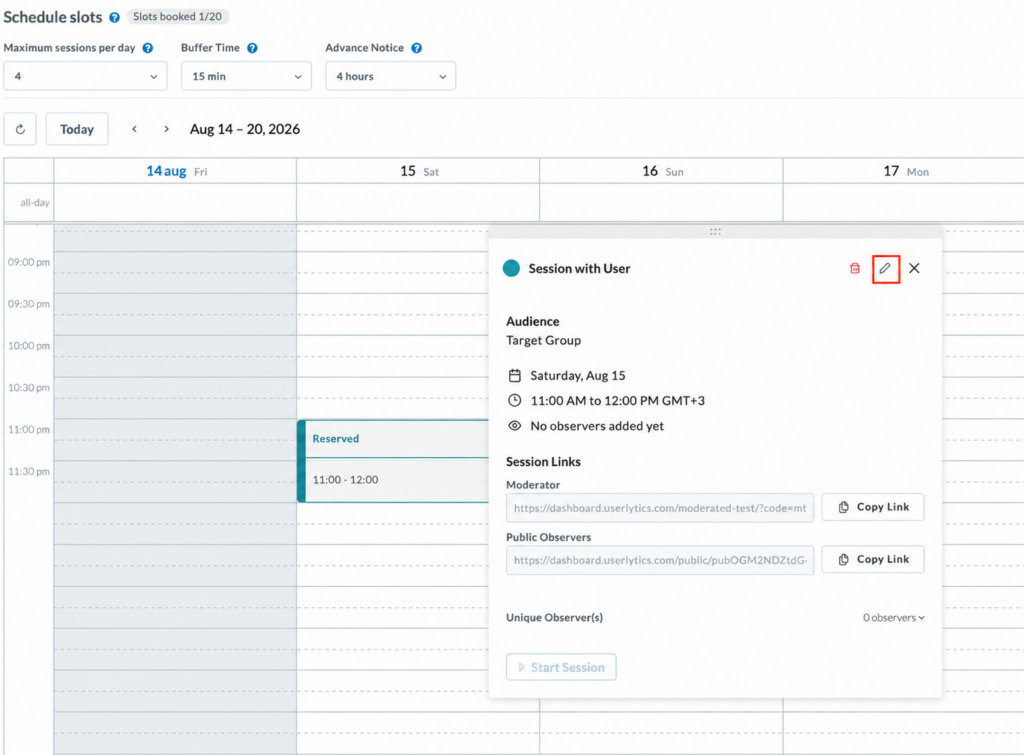
Next, add the name and the email address of your preferred observer.
Alternatively, you can also invite observers or connect your Userlytics schedule with external calendars, such as Google Calendar or Microsoft Outlook, by clicking the three-dot menu in the top-right corner of the Schedule Slots section. From there, select Invite Observers or Connect Calendars, depending on the action you want to take.

Video Tutorial – Join a desktop study as a Participant.