

Managing a research study should be intuitive and frictionless. That’s why we built Study Pulse: a new study experience that brings each study journey into a centralized timeline. From launching your study to collecting participants, generating AI insights, and completing analysis, Study Pulse keeps everything connected and helps you know exactly what to do next.
Why We Built Study Pulse
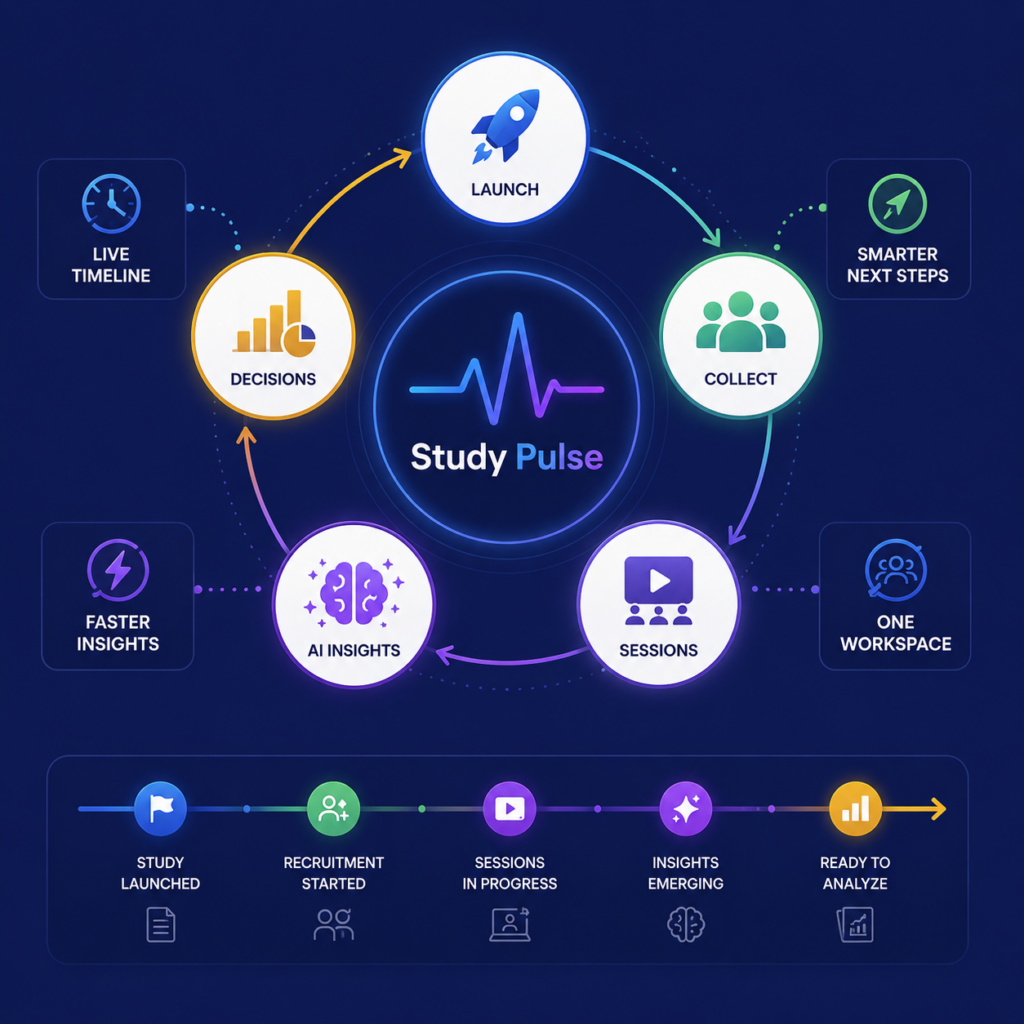
As studies progress, important information naturally becomes scattered across the platform.
Researchers often switch between:
- Recruitment
- Sessions
- Metrics
- AI Insights
- Annotations
- Reports
While all the information exists, understanding the overall health and progress of a study requires constant navigation.
Study Pulse solves this by creating a single source of truth for every study.
Instead of asking “Where should I go next?”, the platform guides you through every stage of your research.
What is Study Pulse?
Study Pulse is a live event timeline that automatically records everything happening throughout your study.
Every important milestone appears in chronological order, making it easy to understand what has happened, what’s happening now, and what comes next.
Think of it as a guided workflow that helps researchers and cross-functional teams to move naturally from data collection to actionable insights.
How It Works
1. Launch Your Study
Once your study is live, Study Pulse immediately begins tracking its progress.
The timeline records key events as they occur, creating a complete history of your research.
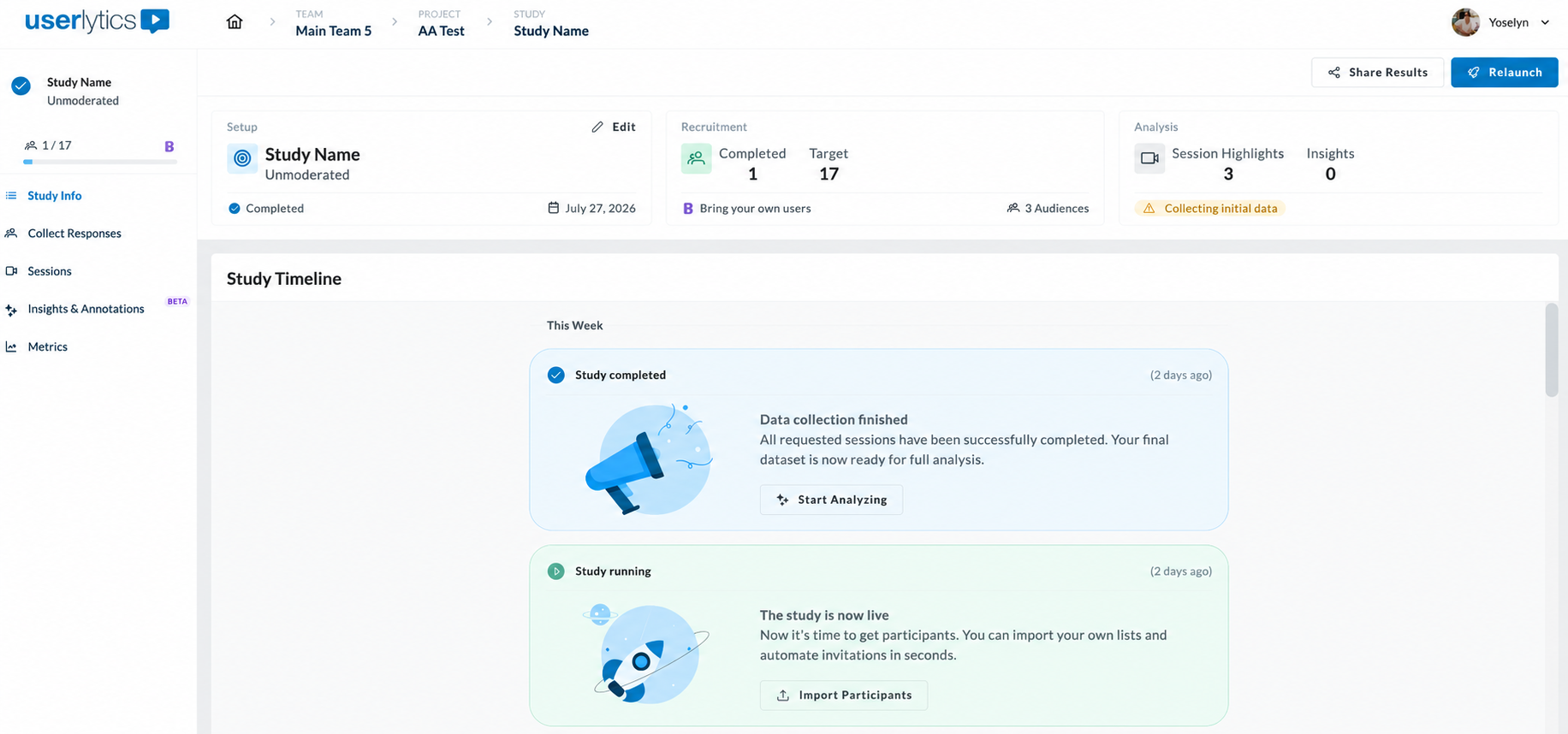
Examples include:
- Study running
- Study completed
- Responses completed
- Analysis in progress
Every study opens with a header that brings the three parts of your study together in one place: Setup, Recruitment, and Analysis. Each box shows current status and gives you the action that goes with it.
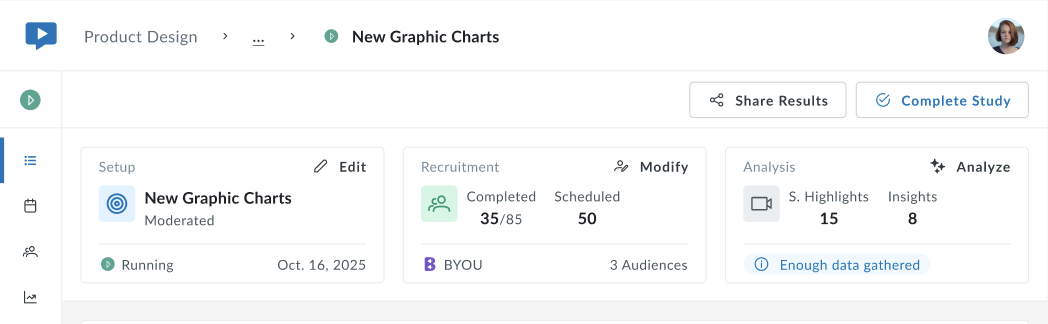
- Setup
Your study name, study type, and current status, along with the launch date. Select Edit to change your study configuration.
- Recruitment
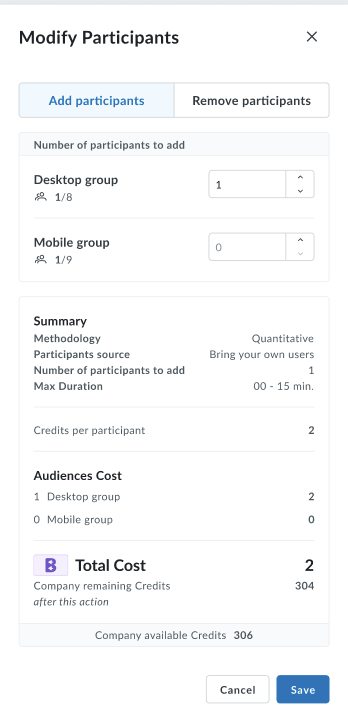
Your progress toward the participant target. Completed shows how many sessions are finished out of your target, and for moderated studies Scheduled shows how many are booked. Below that, you’ll see whether you are recruiting your own participants or using the Userlytics Panel, and how many audiences the study is running against. Select Modify to add or remove participants.
Analysis
Session Highlights and Insights counts, plus a status tag showing where your data collection stands. Once enough responses have arrived, the tag reads Enough data gathered and the Analyze action becomes available.
Study actions
At the top of the header, Share Results lets you share your findings, and Complete Study closes data collection when you are finished. For studies that have already been completed, this becomes Relaunch.
2. Watch Your Study Progress in Real Time
As participants complete sessions, the timeline automatically grows and records what happens as it happens, in descending chronological order.
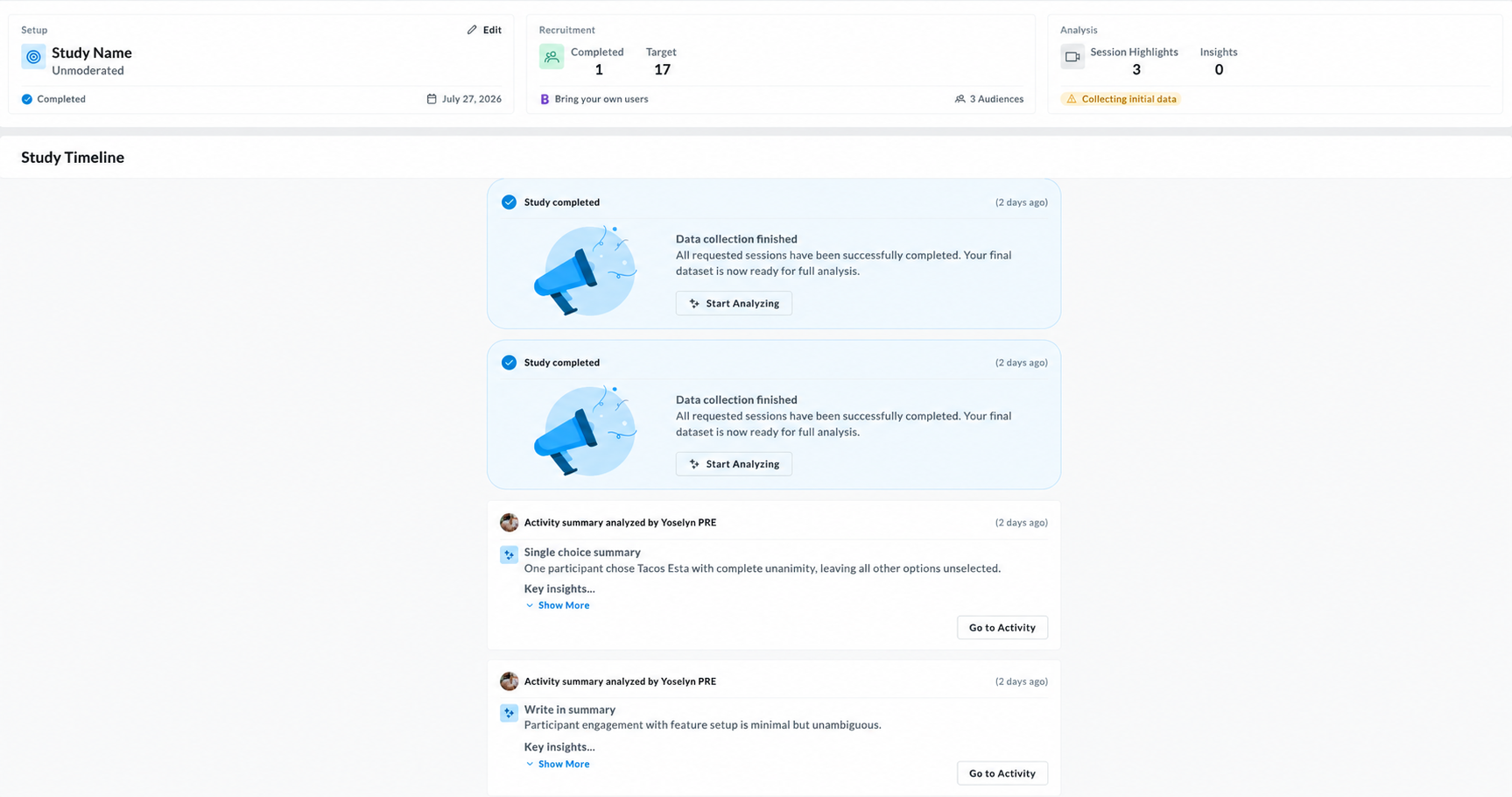
As each event completes, it surfaces the ideal next step.
3. Begin Analysis
Study Pulse doesn’t wait until the study is finished before helping you.
As data becomes available, you can begin generating analysis throughout the research process, including:
- Session Summaries
- First Impressions
- AI-generated Insights
- Session Highlights
This allows you to start identifying patterns much earlier instead of waiting until every participant has completed the study.
For example, when your study finishes collecting data, the feed points you straight to analyzing the results. Simply click on the “Start Analyzing” to get started.
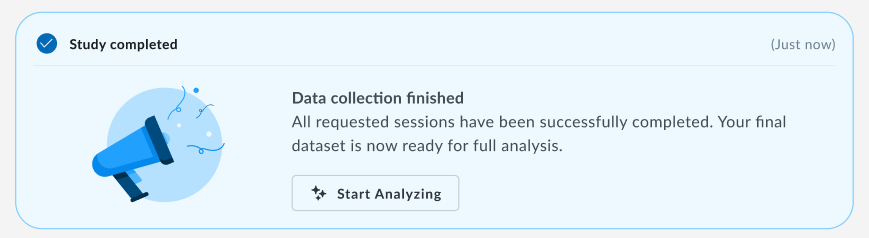
A loading screen will pop up guiding you through your study’s progress, showing how many sessions, transcriptions, and annotations are available so far.
If you choose to start analysis, you will be taken to the AI Insights tab where the AI assistant will begin analysis with the data available. For full details on how AI Insights works, refer to this guide.
Once the analysis finishes, an executive summary appears, and from there you can ask the AI follow-up questions to dig into the findings that matter most to you.
Prior to that, when your study goes live, a Study running event appears in the timeline confirming that participants can begin.
The next step would be recruitment. The timeline will guide you to select Import Participants to upload your own participant list (for BYOU) and send invitations automatically, without leaving the study.
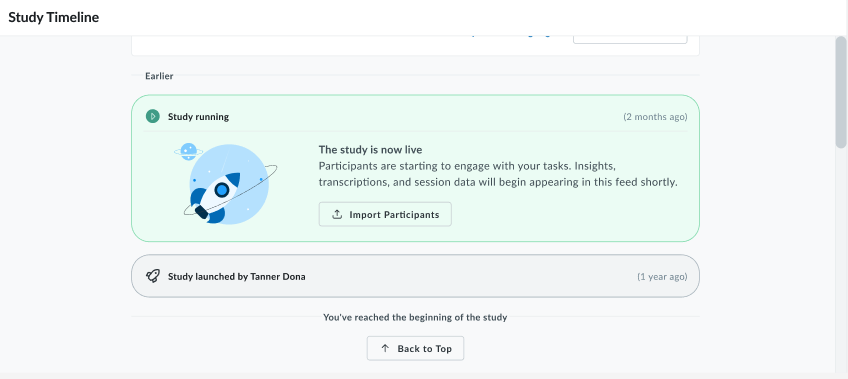
As the study progresses, you’ll see your timeline grow in activities, becoming a centralized hub for the entire team to easily follow each study status.
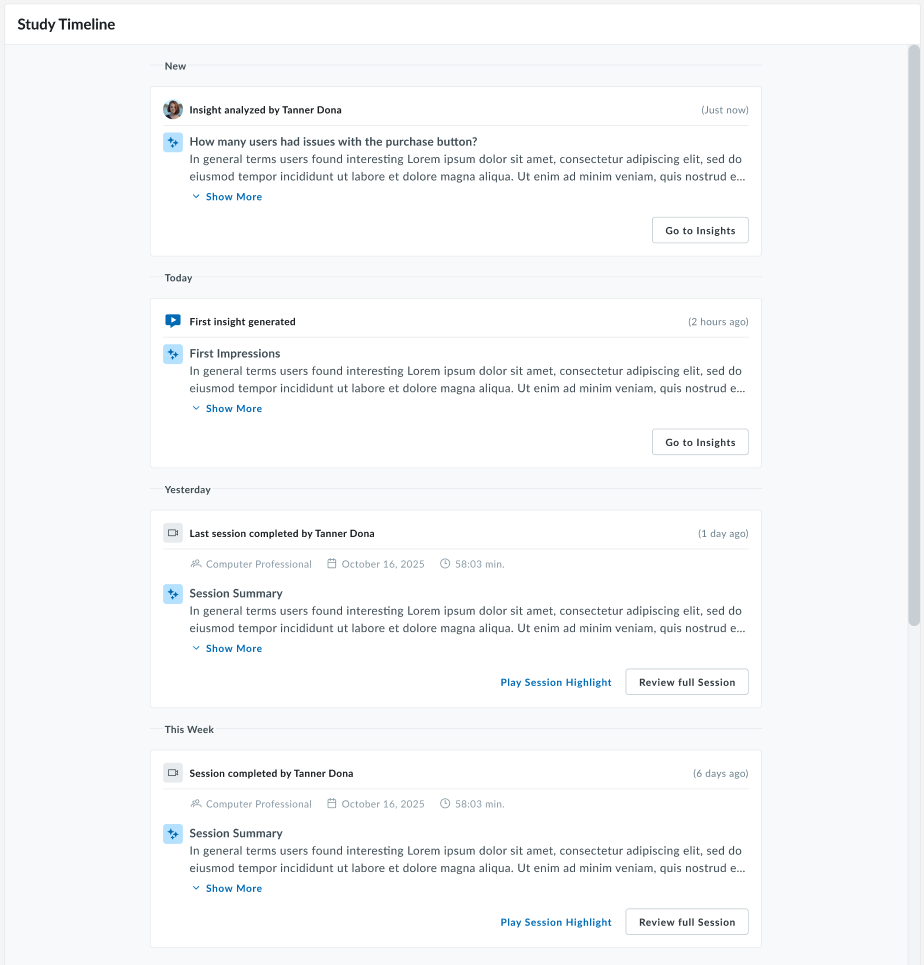
4. Know Exactly When to Analyze
One of the biggest questions during any study is: “Do I have enough data to start analyzing?”
Study Pulse answers this automatically through the Analysis panel.
Collecting Initial Data
When fewer than 35% of your target participants have completed the study, Study Pulse indicates that data collection is still in progress.
Enough Data Gathered
Once approximately 35% of participants have completed the study, analysis becomes available.
You can begin exploring AI-generated insights while additional participants continue completing sessions.
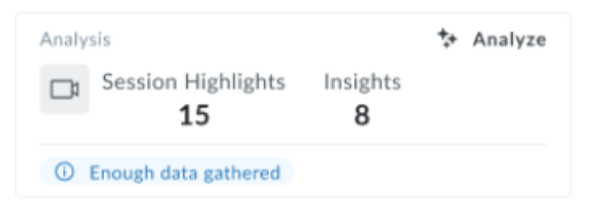
This helps reduce your Time-to-Insight, allowing you to uncover findings earlier without waiting for recruitment to finish.
Data Collection Complete
When your recruitment target has been reached, Study Pulse indicates that your study is complete and ready for full analysis and reporting.

Built for Collaboration
Everyone with access to a study can view the Study Pulse timeline, making it easier for cross-functional teams to stay informed.
Whether you’re an experienced researcher or running your first usability study, Study Pulse provides a guided workflow that makes research easier to complete from beginning to end.