





Setting up a study from a blank canvas is slow, and knowing which tasks, questions, and screener criteria make a good study takes experience. With AI Study Designer, you describe what you want to test in plain language and get a complete, best-practice draft you can review and launch in minutes.
What is the AI Study Designer?
A conversational assistant inside Userlytics that turns a plain-language description of what you want to learn into a fully populated study draft.
- It builds a study tailored to you. It isn’t a template picker or a form.
- It’s trained on best-practice study patterns, so structure and wording follow what works.
- You stay in control. The AI drafts, you review and launch.
It’s a good fit for:
- Spinning up unmoderated tests and quant surveys quickly
- Teams without a dedicated researcher
- Keeping study quality consistent across a team
What it creates
| Study types | Unmoderated studies (live website, prototype, mobile app, a specific user flow, ecommerce experience) and quant surveys |
| Screener | Auto-generated from your description of your ideal participant |
| Audience | Userlytics Panel (2M+ participants) or your own users (BYOU) |
| Activities | Generated in sequence, with follow-up probes after tasks |
What the AI handles for you:
- It asks only what it needs. Where it can infer a value from what you’ve already said, it suggests it instead of asking.
- Best practice by default. Follow-up probes after tasks, a sensible study length, screener questions that don’t lead.
- Built-in guardrails. It keeps studies compliant by never collecting personal data, on the topic you described, and correctly sized.
Before you start:
Have these ready and the first draft will need fewer edits:
- What you’re testing. A page, a flow, or a whole experience.
- A link, if you have one. Website, prototype, or app.
- A description of your ideal participant. The screener is generated from this.
You don’t need research jargon. Plain language works.
How it Works:
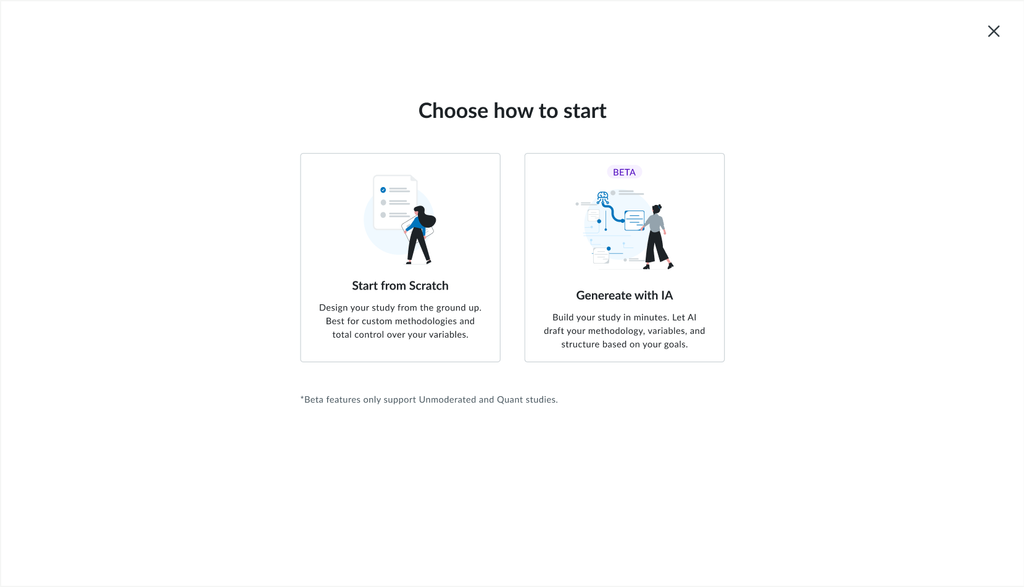
1. Choose “Generate with AI”
Start a new study and select Generate with AI instead of the classic Study Builder.
2. Chat with the AI
Describe your goal, or pick a quick-start shortcut: Test a live website, Run a quick survey, Test a prototype, Compare design alternatives, Optimize the checkout flow, or Start from scratch.
The AI asks a few simple questions from there. If you ask for something it can’t do in the chat, it tells you and points you to the Study Builder.
3. Review in the Study Builder
The complete draft opens in the Study Builder in draft mode, with study details, audience, screener, and activities already populated. Everything is editable, so nothing goes live without you.
4. Launch
Finalize, adjust anything you want, then launch when you’re ready. Advanced options live in the Study Builder.
Getting the best results from the AI
- Be specific about what you’re testing, whether that’s a page, a flow, or the whole checkout.
- Say what you want to learn, not just what you want to test.
- Share the link when you have one.
- Describe your ideal participant so the screener targets the right people.
- Anything the AI can’t do in chat, it’ll tell you and point you to the Study Builder.
What you’ll finish in the Study Builder
The AI gets you most of the way, fast. The Study Builder handles fine-tuning and advanced cases:
| What you want | Where to do it |
| Branching or skip logic | Study Builder, after the draft |
| Uploading an image or other stimulus | Study Builder |
| Tree test, card sort, NPS, SUS, and other advanced activities | Study Builder |
| A second country or market | Set up one market, then clone from the Study Builder |
| Editing or cloning an existing study | Study Builder |
| Moderated studies | Study Builder |
FAQs