The new Userlytics Mobile Tester Experience for iOS and Android introduces a simpler and more intuitive way for participants to access studies, prepare for sessions, complete tests, and manage their tester account.
The redesigned experience reduces unnecessary steps throughout the tester journey while making important information easier to find. Participants can more clearly see which studies are available, understand what is required before starting, follow their activities during a test, and confirm that their results have been uploaded successfully.
For researchers, this means a smoother participant experience that can help support better preparation, more reliable study completion, and more dependable research.
How Do Participants Access the Userlytics App?
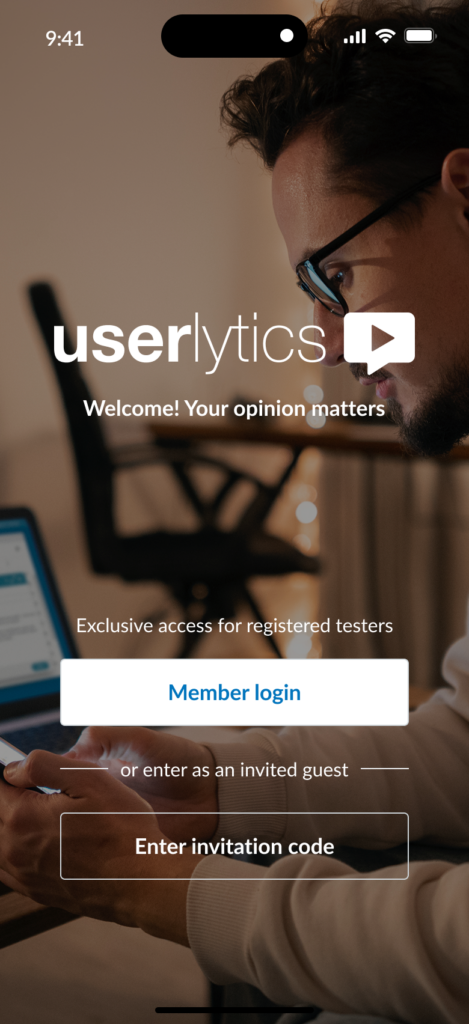
When participants open the Userlytics app, they can enter in one of two ways depending on how they were recruited.
Registered Userlytics Panel testers can select Member login and access the studies available through their Userlytics account.
Participants invited through Bring Your Own Users (BYOU) can instead select Enter invitation code. This allows invited participants to access a specific study without creating a Userlytics tester account.
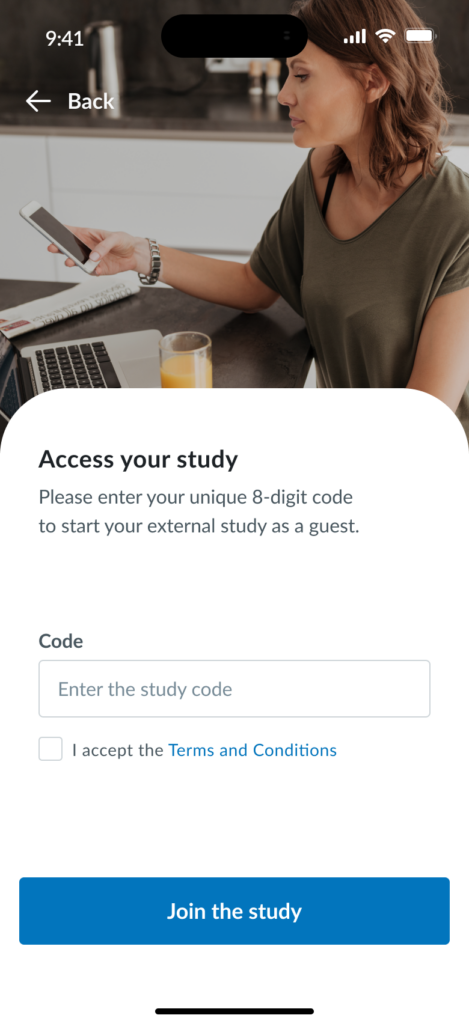
For BYOU studies, participants enter the unique 8-digit invitation code associated with the study, accept the Terms and Conditions, and select Join the study.
This keeps the entry process simple for participants who are being recruited directly by the researcher rather than through the Userlytics Panel.
Finding and Joining Available Studies
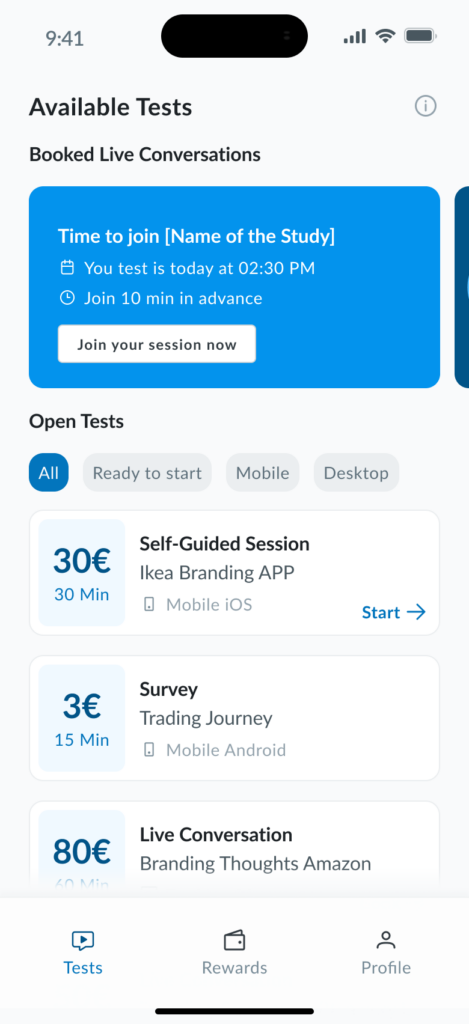
After logging in, Panel testers are taken to the Tests section, where they can see the studies currently available to them.
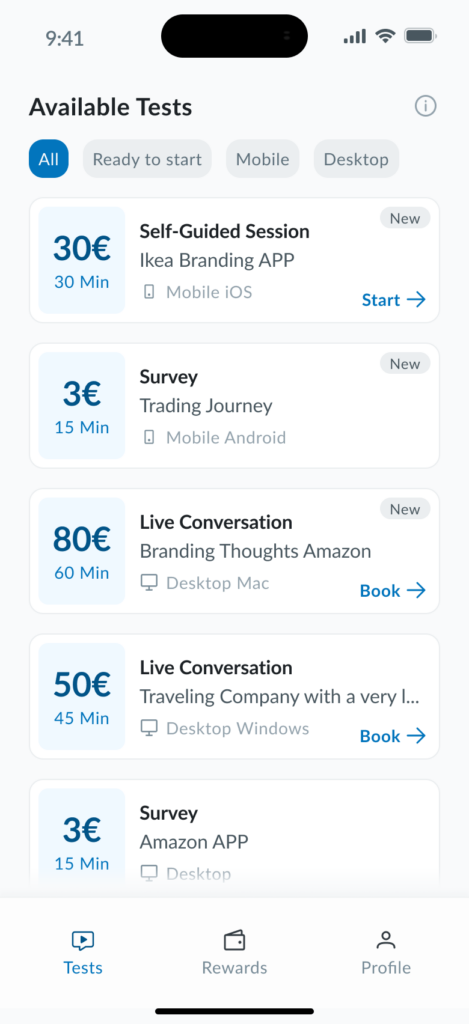
Each study card provides important information before the participant starts, including the reward, approximate duration, type of study, and the device required to participate. Testers can also filter the list using options such as All, Ready to start, Mobile, and Desktop.
Depending on the study, participants may see a Survey, a Self-Guided Session, or a Live Conversation.
Surveys are simpler activities that do not normally require camera or audio. Self-Guided Sessions allow participants to complete activities independently while following the study instructions. Live Conversations are moderated sessions that require the participant to reserve a time slot and join an interviewer at the scheduled time.
Booked Live Conversations are displayed prominently at the top of the screen. As the scheduled session approaches, the app makes it clear when the participant can join.
When the session is ready, the participant can select Join your session now directly from the booked session card. This makes scheduled sessions easier to identify and reduces the need for participants to search through their available studies when it is time to join.
Preparing the Device Before Testing
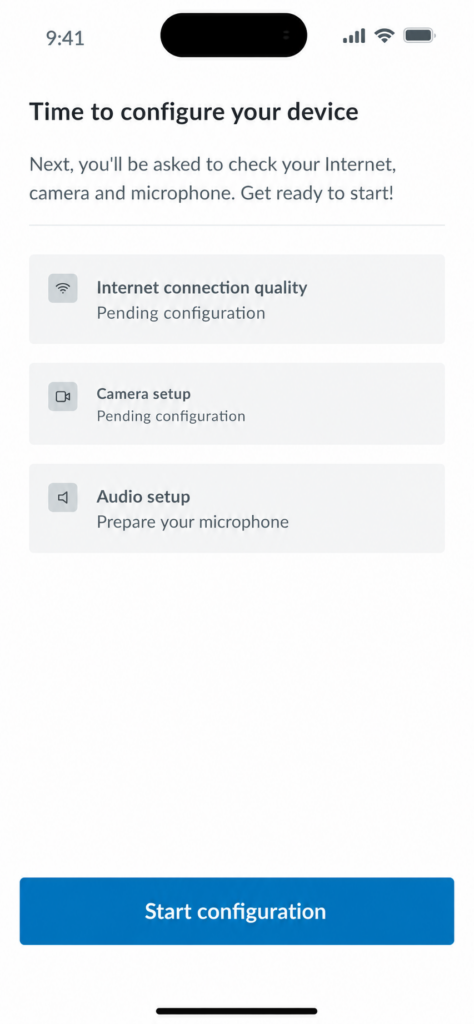
Before a study begins, participants may be guided through a built-in configuration process to make sure their device is ready.
The pre-test experience checks the participant’s internet connection, camera, and audio before the study starts. This allows potential setup problems to be identified before they interfere with the actual test.
Participants begin by selecting Start configuration.
The app then guides them through the required checks. For studies that use video or audio, participants are asked to confirm that they can see themselves correctly on camera and to speak aloud so that their microphone can be verified.
If the participant experiences a problem during this process, they can also access Support directly from the setup screen.
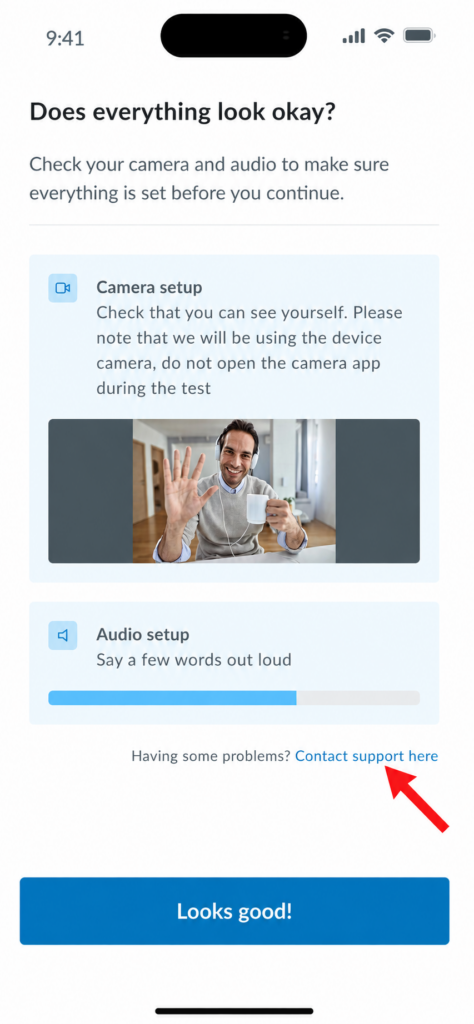
For a Live Conversation, the app guides participants through checks for their internet connection, camera, and audio before the moderated session begins. This helps identify potential technical issues before they interfere with the conversation.
For a Self-Guided Session, participants are guided through audio verification and screen-sharing setup, ensuring the app can capture the required feedback and on-screen activity during the test.
Surveys do not require a device setup process, so participants can proceed directly to the study.
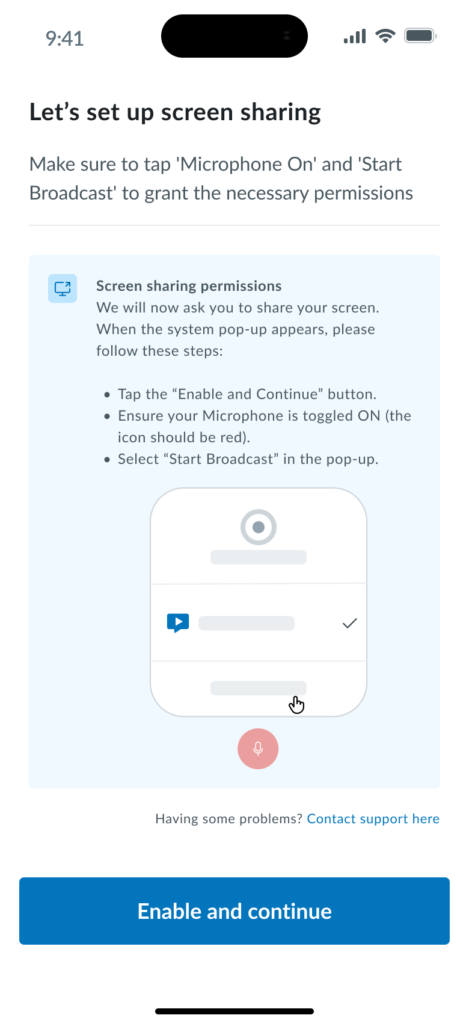
Some studies also require the participant to share their screen. When screen sharing is needed, the app provides instructions for granting the necessary device permissions.
Participants should follow the prompts shown on the screen and select Enable and continue to proceed.
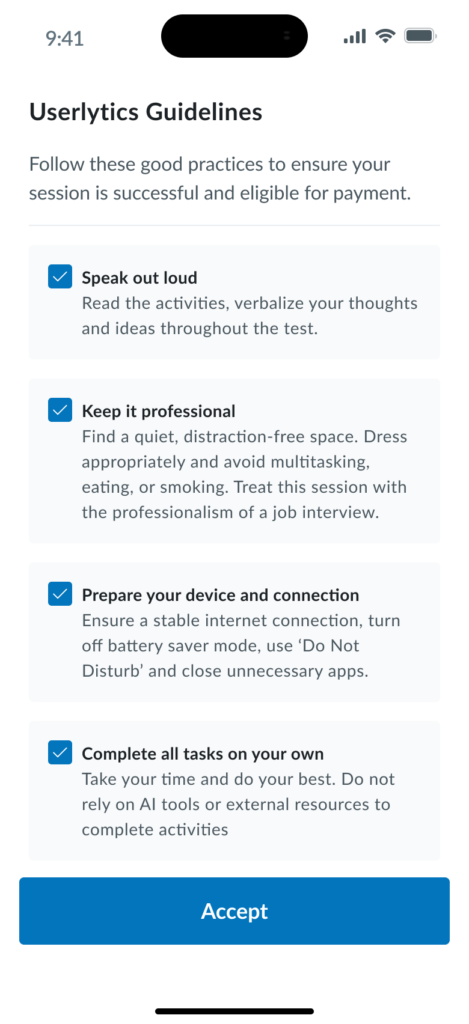
Before starting, participants may also be shown a set of testing guidelines. These remind them to speak their thoughts aloud, remain in a quiet and professional environment, prepare their device and internet connection, and complete the activities independently.
These checks and reminders are designed to help participants arrive ready and reduce interruptions once the study is underway.
Starting the Study
Once the setup process has been completed, the participant is guided into the appropriate experience based on the type of study.
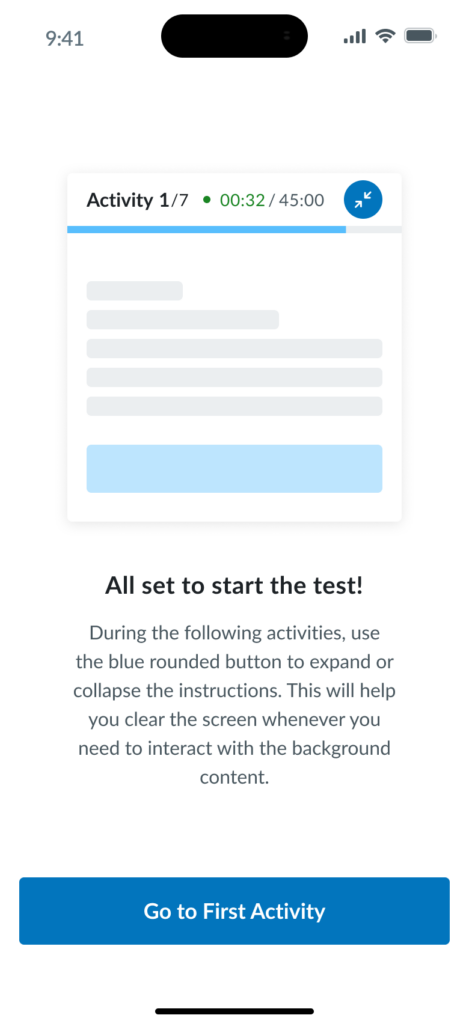
For a Self-Guided Session, the app confirms that the participant is ready and introduces how the activity instructions will work before the first task begins.
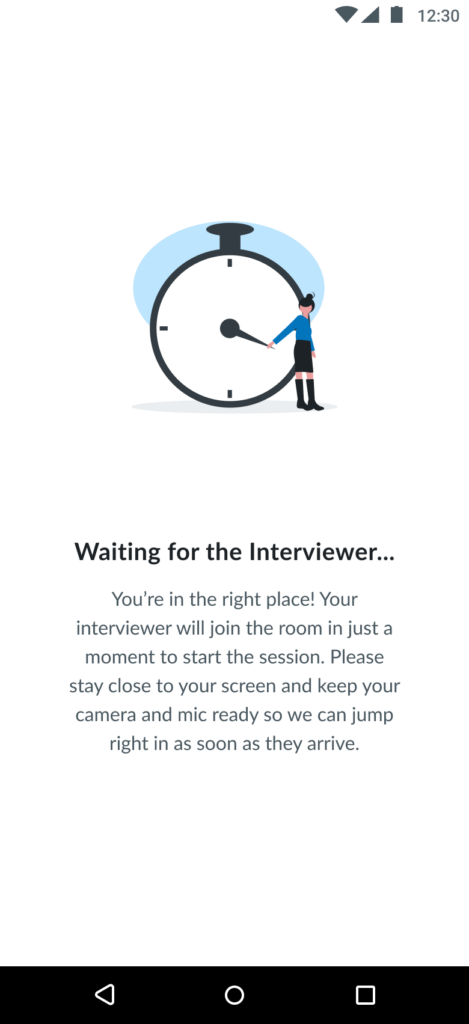
For a Live Conversation, participants are guided into the moderated-session flow. If the interviewer has not yet entered the session, the participant is placed in a dedicated waiting room and asked to remain near their device with their camera and microphone ready.
This gives participants a clear indication that they are in the correct place and that the session will begin once the interviewer joins.
Following Activities During a Test
During a self-guided study, participants interact with an Activity Box that contains the current task instructions.
The Activity Box can be expanded when the participant needs to read the activity and collapsed when they need more space to interact with the website, app, prototype, or other content being evaluated.
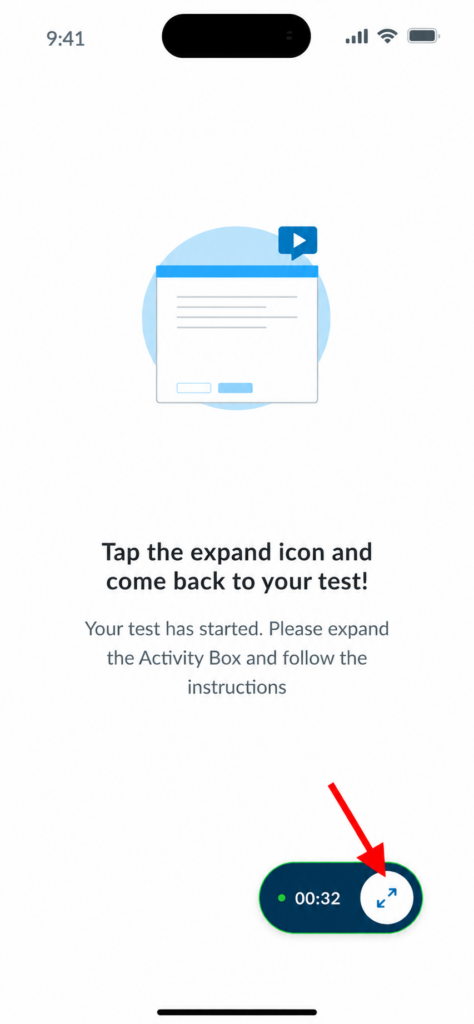
The interface also keeps important session information visible, including the current activity, progress through the study, and elapsed time.
This allows the instructions to remain available without permanently covering the content being tested.Participants can continue through the activities until the study is complete.
Uploading the Results
After the participant finishes the study, Userlytics begins uploading the recorded results.
A visible progress indicator shows the upload status so participants know that the process is still running.
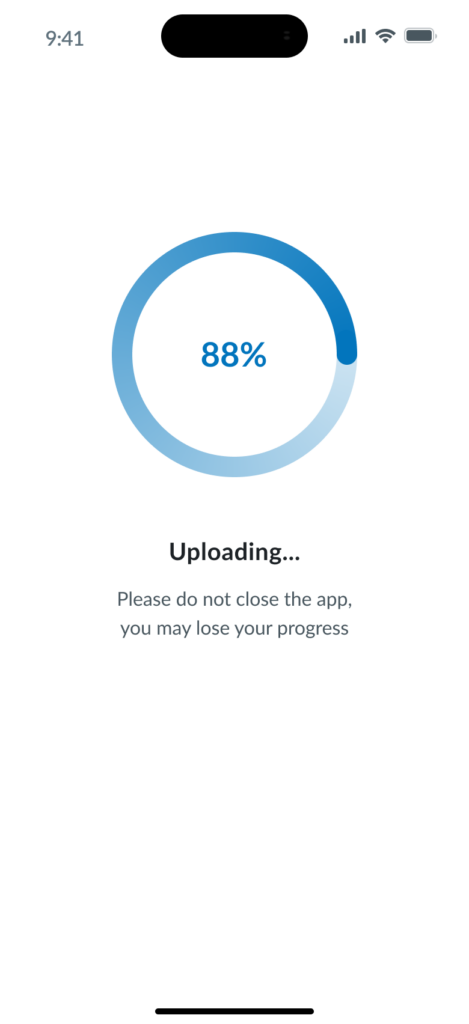
NOTE: It’s important that participants do not close the app while the upload is in progress, as doing so may interrupt the upload or cause progress to be lost.
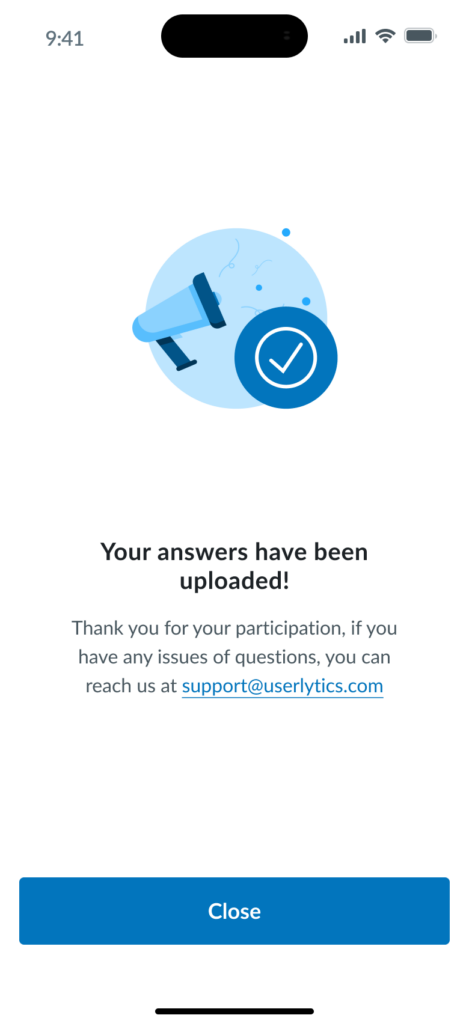
Once the upload has completed successfully, the app confirms that the participant’s answers have been uploaded.
Rewards for Userlytics Panel Testers
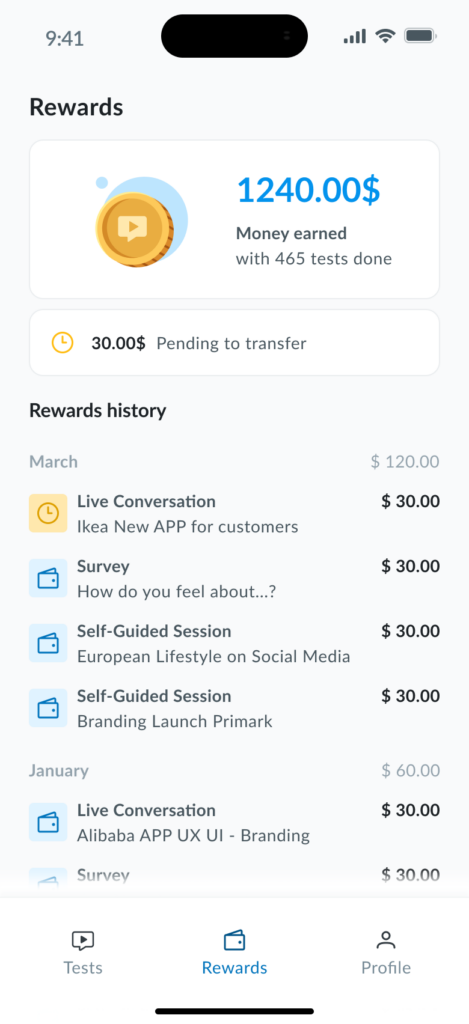
Registered Userlytics Panel testers can access the Rewards section from the main navigation.
The redesigned Rewards dashboard provides a clearer overview of the tester’s activity, including their total earnings, the number of completed tests, any amount pending transfer, and a history of individual rewards.
The reward history also allows testers to see how individual studies contributed to their earnings.
For new testers who have not yet completed a study, the Rewards section displays an empty state explaining that earnings will appear after the first eligible test is completed.
This gives testers a clearer understanding of where their future rewards will be tracked without requiring a separate explanation.
Managing the Tester Profile
The Profile section gives registered testers access to the main account-management options available within the app.
From here, testers can access:
- Personal information
- Payment details
- Security and password
- Notifications
- Userlytics source
- Support
- Log out
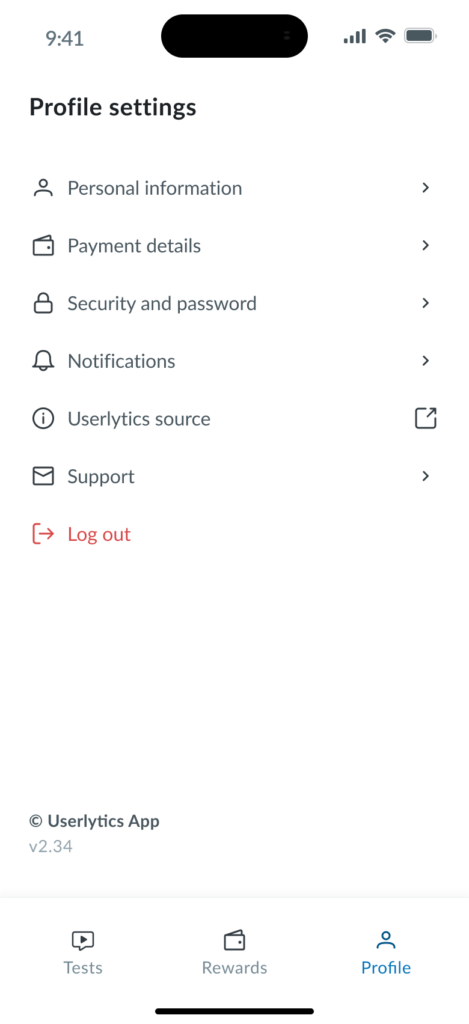
Participants can review their personal and payment information, manage their password, and adjust the notification settings available to them.
Password changes can be completed directly in the app by entering the current password and creating a new one that meets the displayed security requirements.
Notification preferences can also be managed from the Profile section, including whether the tester wants to receive email notifications when new studies match their profile.
If a participant needs assistance, the Support option provides direct access to Userlytics Support without requiring them to leave the account-management flow and search for contact information separately.