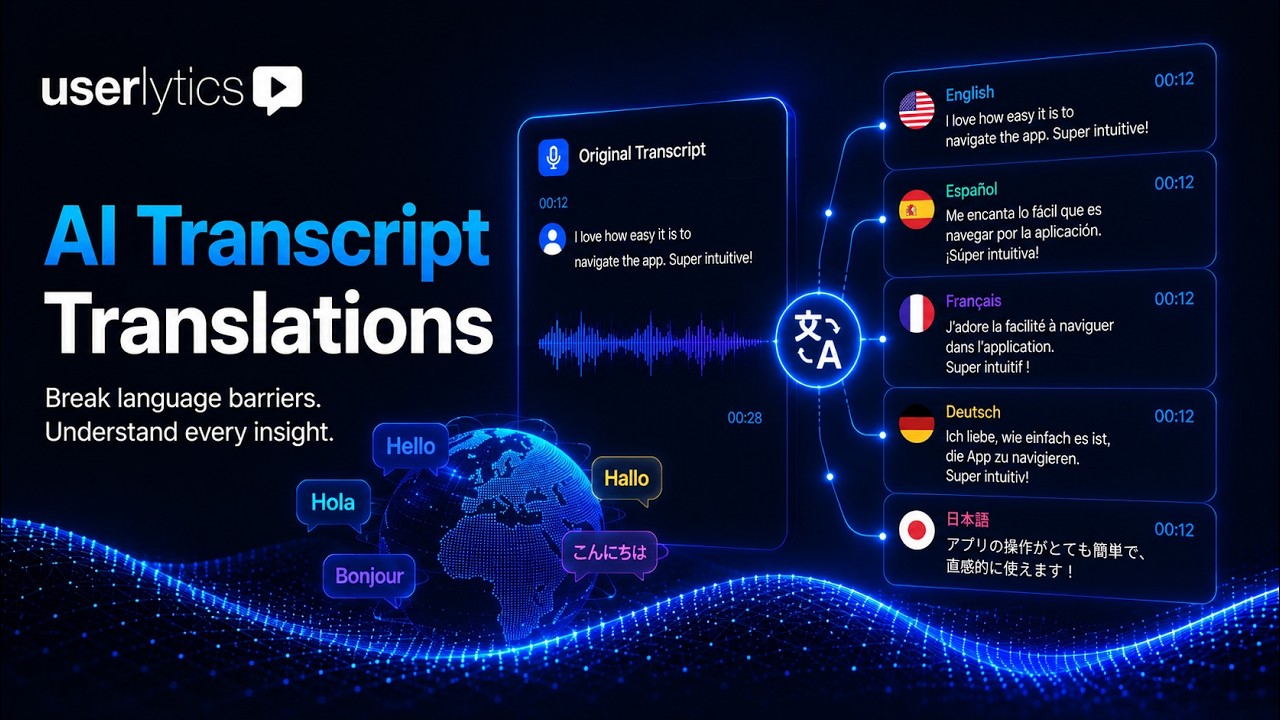
Run studies in any language and analyze them in yours. AI Transcript Translations lets you translate session transcripts into a diverse selection of international languages directly, so language is never the bottleneck in your global research.
Here’s how to get started.
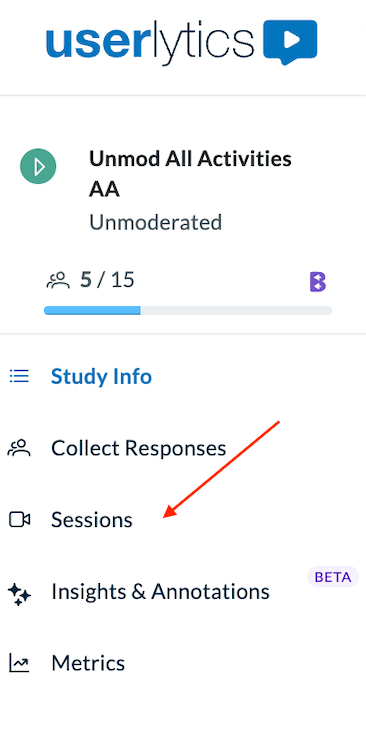
Step 1: Navigate to Sessions
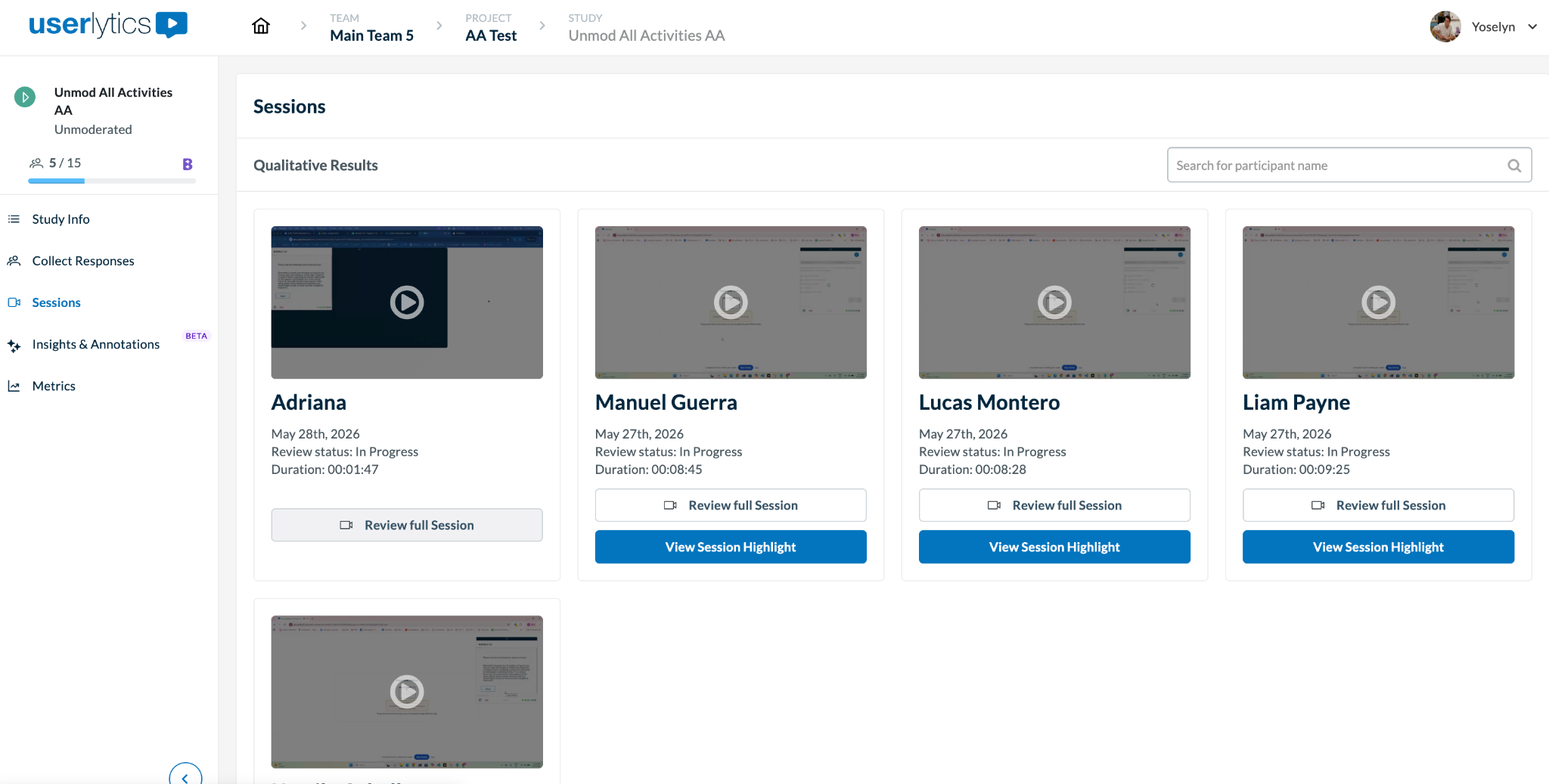
From your study’s left sidebar, click Sessions. You will see all recorded sessions for your study displayed as participant cards.
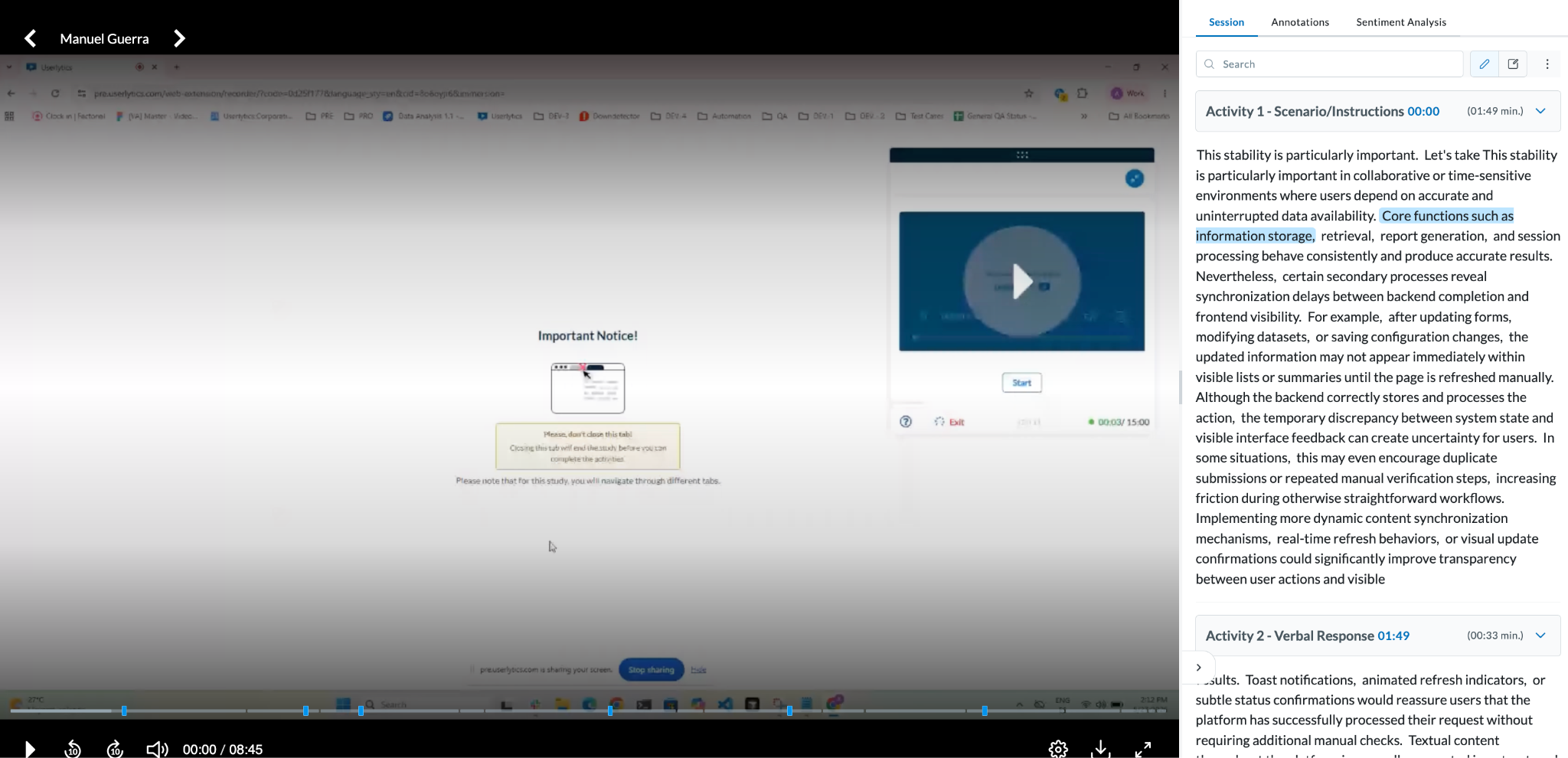
Next, click on Review Full Session on a session recording of your choice.
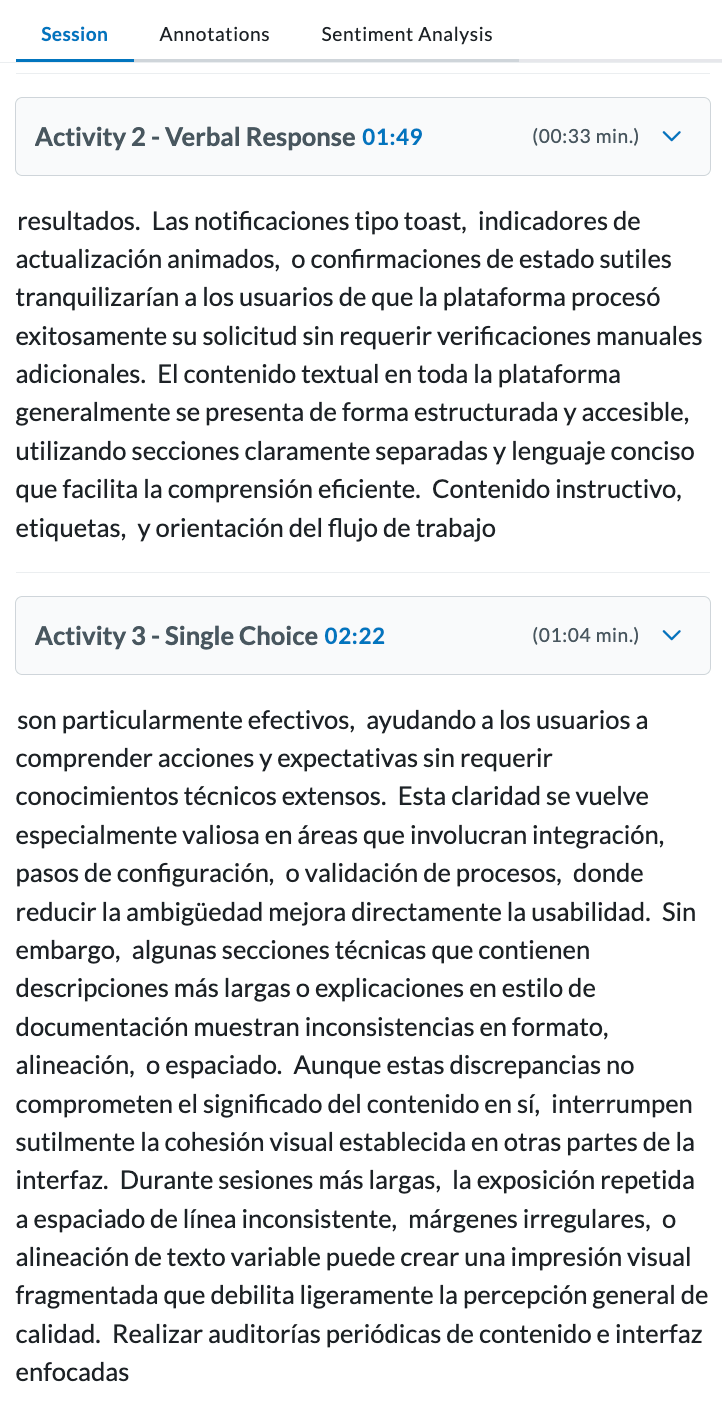
You will see the transcriptions per Activity under the “Session” tab on the left side panel.
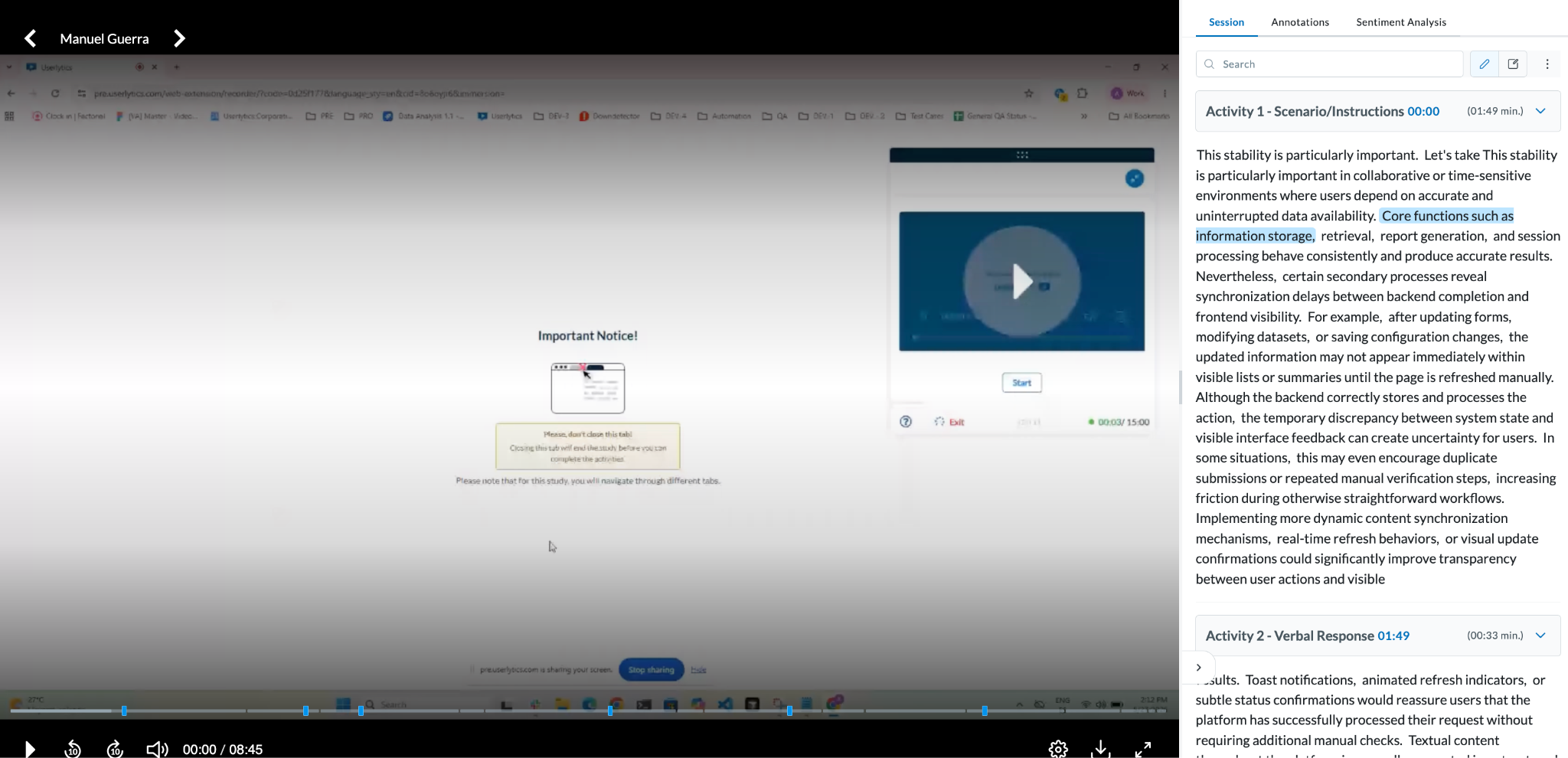
Step 2: Open the Translate Transcription Option
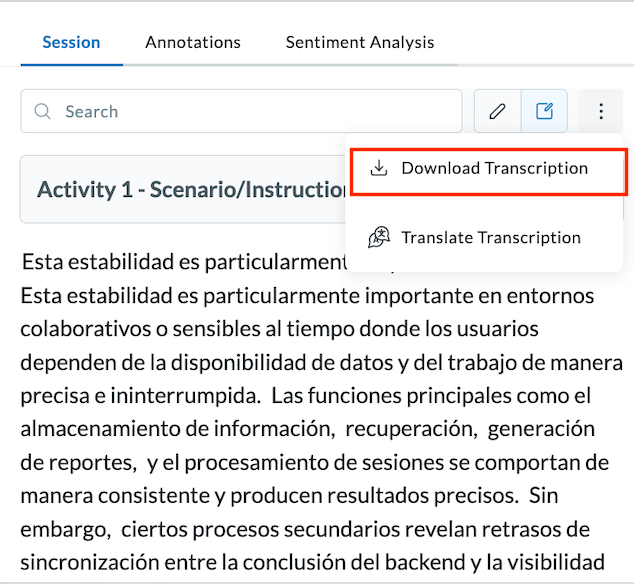
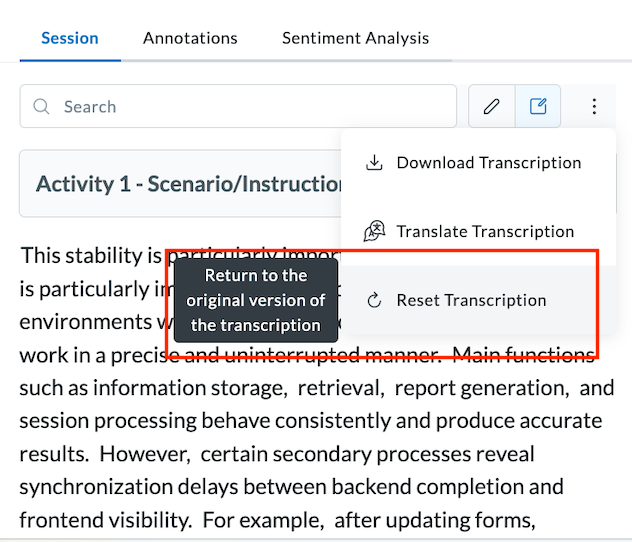
In the transcript sidebar, click the three-dot menu (⋮) at the top right. A dropdown will appear with the following options:
- Download Transcription
- Translate Transcription
- Reset Transcription
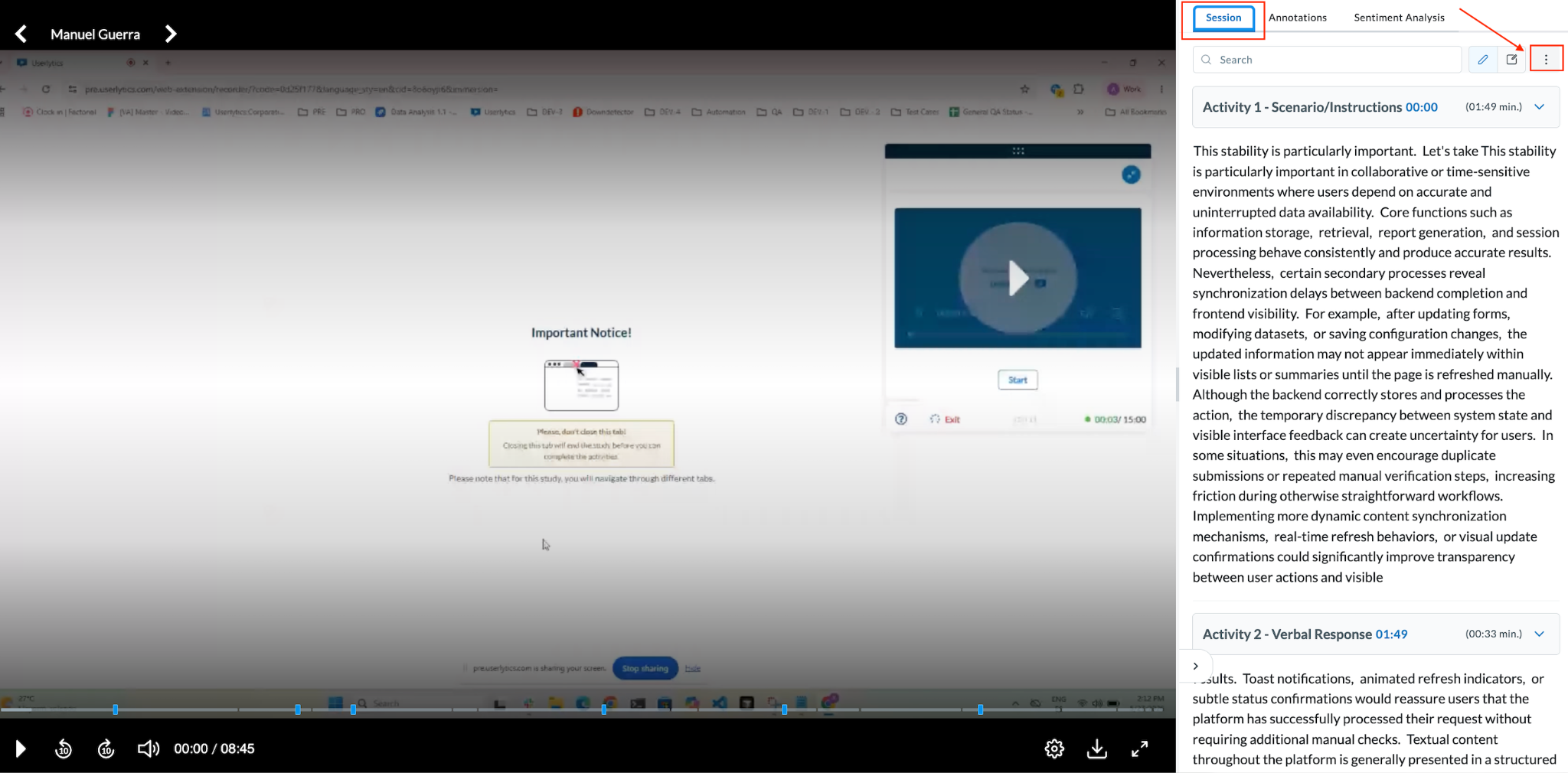
Chose Translade Transcription.
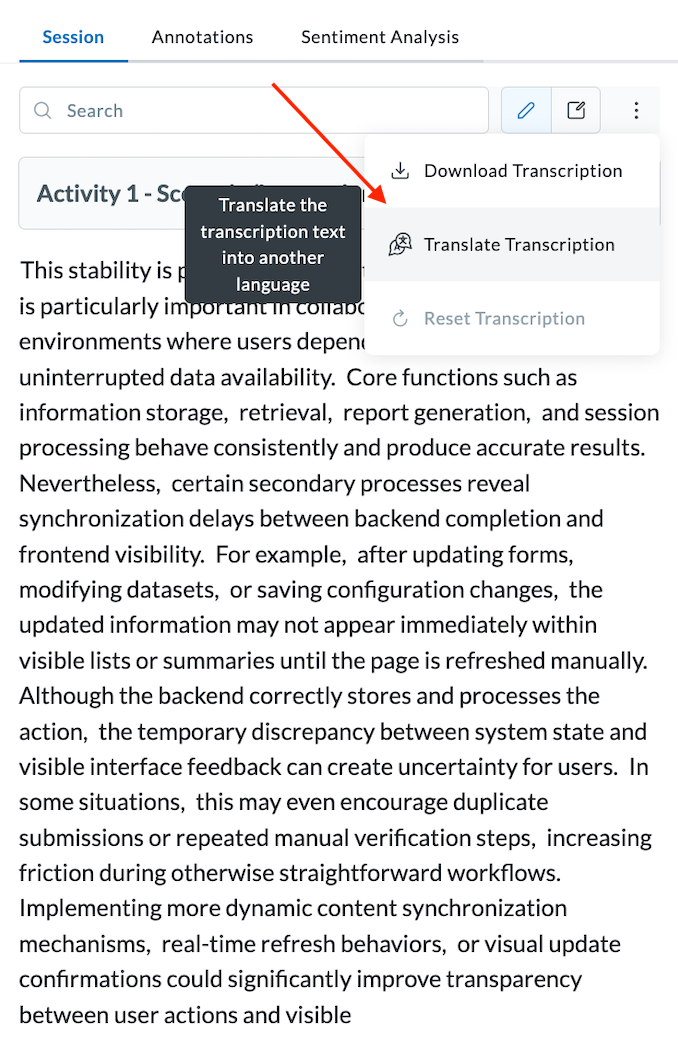
Step 3: Select Your Language and Translate
The Translate Transcription modal will open. Under Select Language, click the dropdown to browse available options.
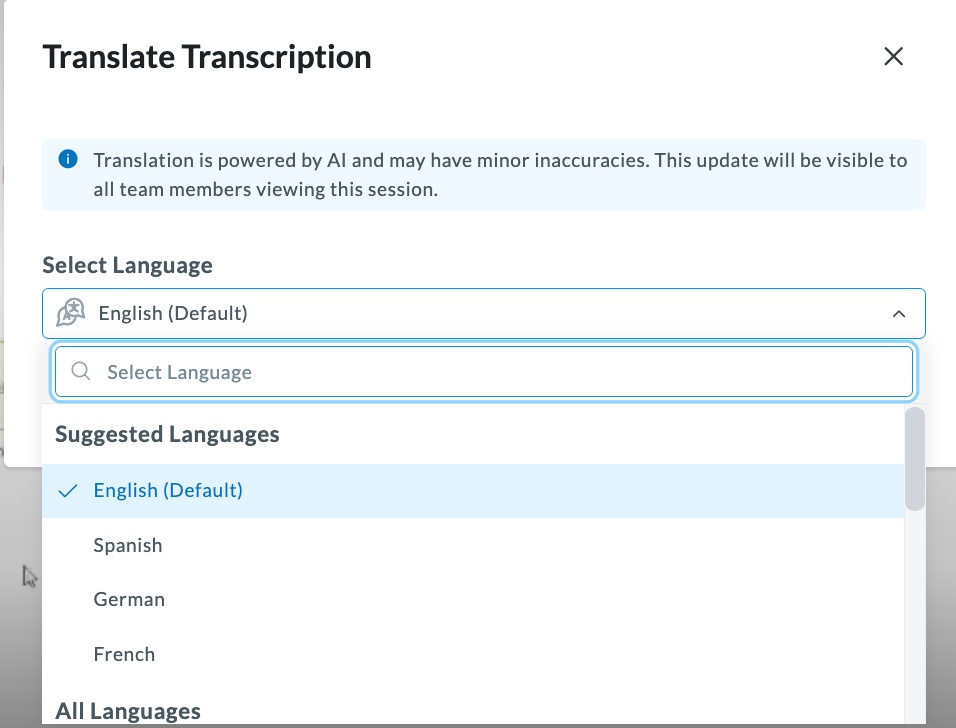
The dropdown displays two sections:
- Suggested Languages: Based on the default language and the most used languages the platform (e.g., English, Spanish, German, French)
- All Languages: The full list of 15 supported languages.
Please note: We have chosen the most used international languages in studies. If you require another language not currently included in the list, please contact your account manager to discuss a set up for that language.
Select your target language, then click Translate.
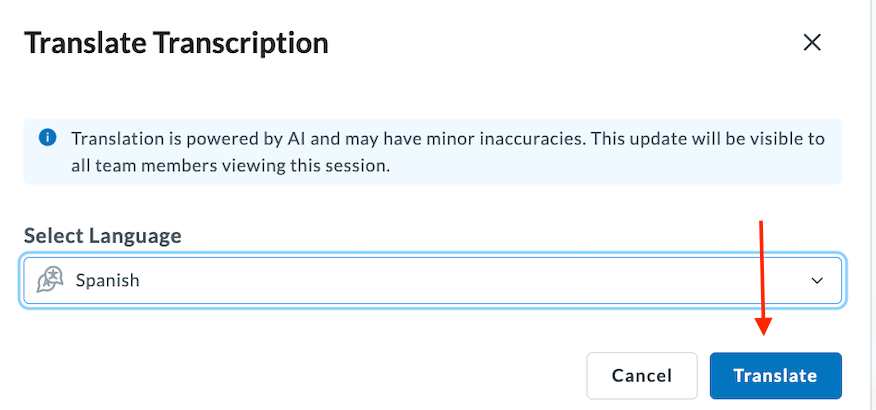
A progress bar will appear at the bottom of the transcript sidebar with the message: “Translating, this may take a moment…”
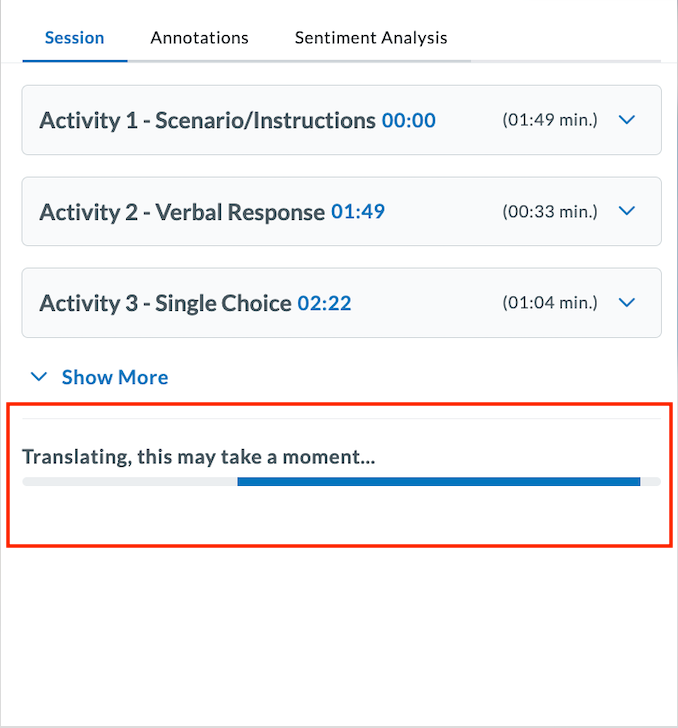
Once complete, the full transcript per Activity will refresh in your selected language, synced with the video playback.
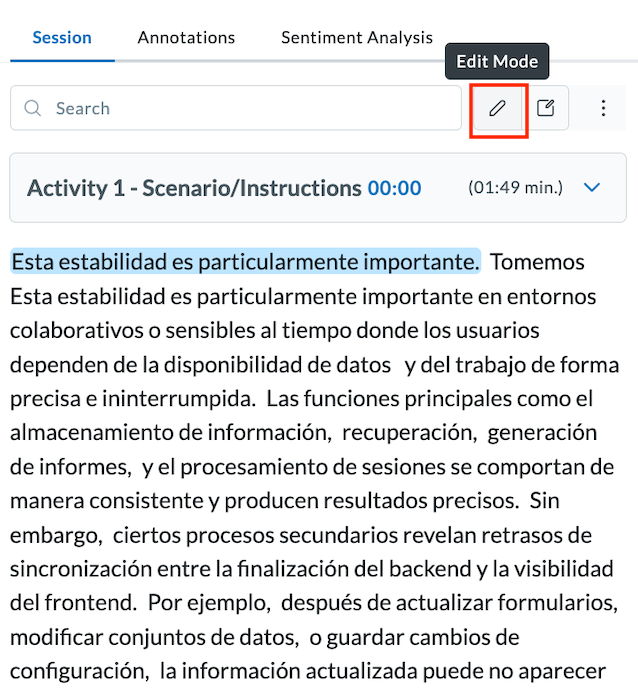
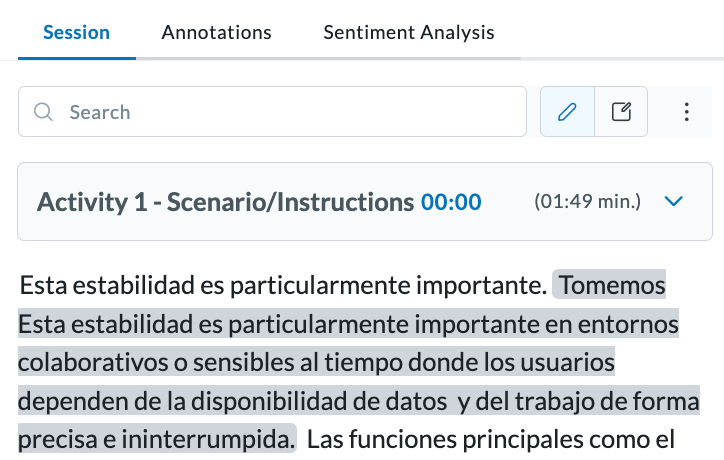
You can click on the pencil in the upper right corner to edit the text as needed. Simply select the “Edit Mode” and go into the text area to edit text as needed.
To download the translated transcription, simply click on the three-dot menu again and hit “Download Transcription.”
You can also return to the original text by hitting the ‘Reset Transcription’ button.
A Few Things to Keep in Mind
- Translation is AI-powered and may have minor inaccuracies. Use the Reset option to verify exact verbatims when precision matters.
- Once applied, the translation is visible to all team members viewing that session.
- Existing annotations stay in their original language to preserve historical context. New annotations made after translation reflect the translated text.
- Don’t see the language you need? Contact your account manager. We can add more languages based on demand.
What if you don’t have transcriptions?
AI Transcript Translation requires a transcription to be present. If the session does not yet have one, you will see a “No transcriptions available” message in the transcript sidebar.
To generate one, click on Request Transcription.
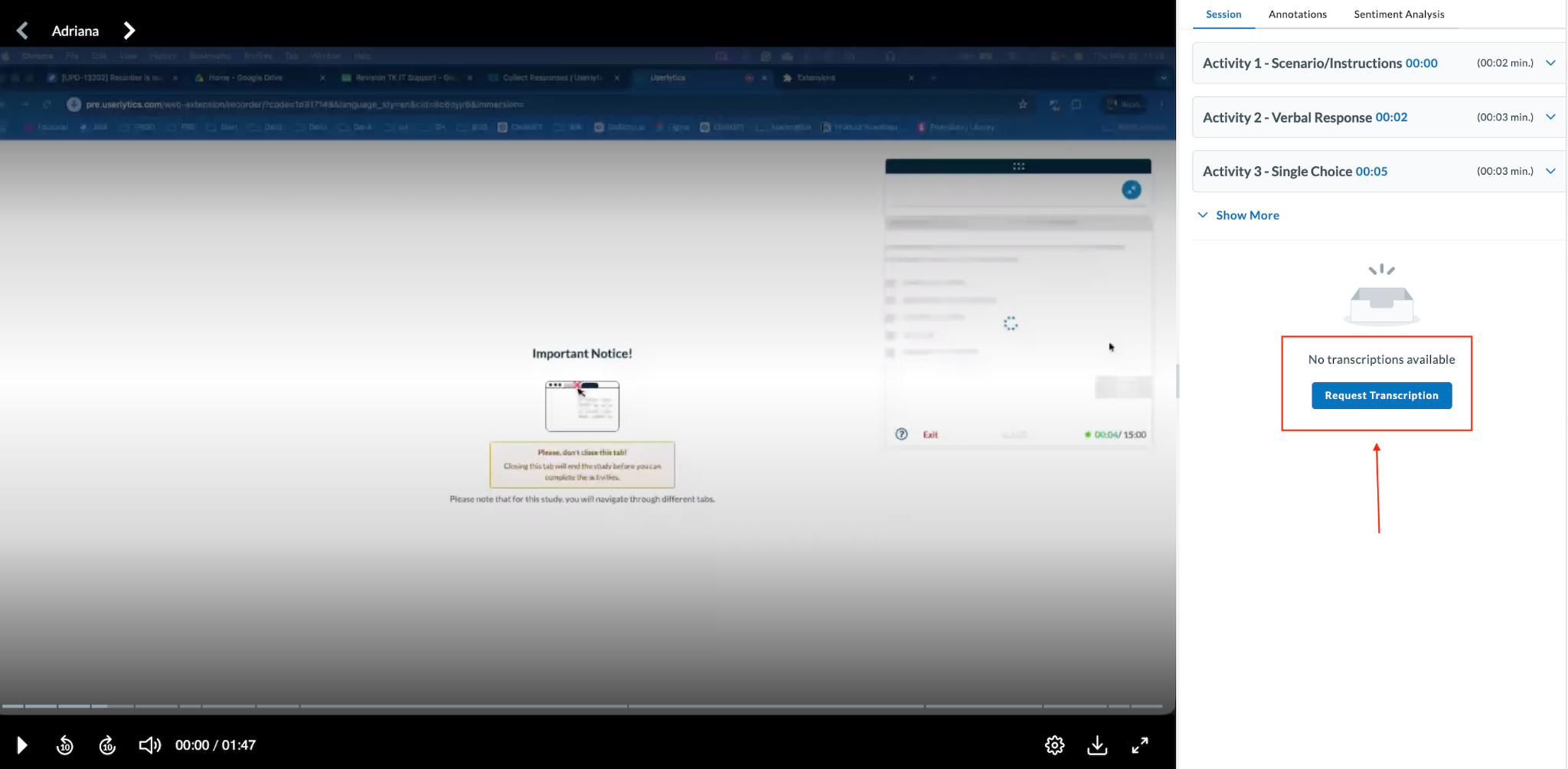
A confirmation modal will appear. Toggle on the email notification if you would like to be alerted when it’s ready, then click Start.
Once the transcription is ready, it will appear in the Session tab of the transcript sidebar, synced to the video timeline.