




Skip to content

How to Enable Cookies in your Browser Before Testing

Published:

How to Enable Cookies in your Browser Before Testing

Userlytics’ advanced overlay web recorder features a quick and easy onboarding system and an innovative draggable and resizable task window for our simplest testing experience yet. But in order to properly use this web recorder, you must first enable cookies on your web browser.

Below, we’ll go over how to enable cookies on both Google Chrome and Microsoft Edge.

How to Enable Cookies on Google Chrome:

  1. On your computer, open Chrome.
Google Chrome icon
  1. At the top right, click “More” and then, “Settings.”
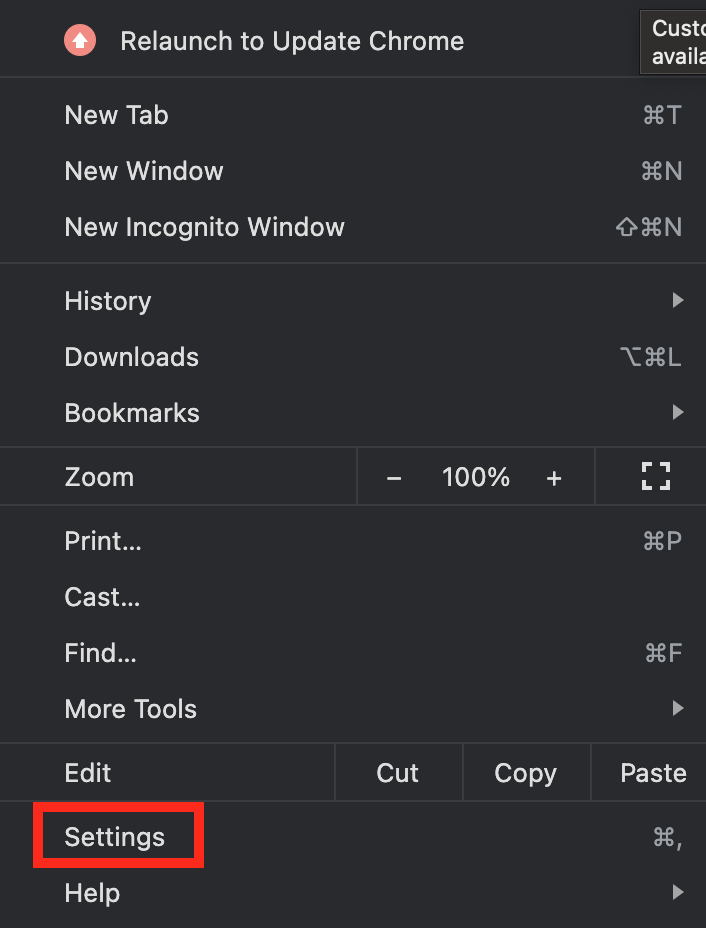
Userlytics - How to Enable Cookies in your Browser - Click More and then Settings
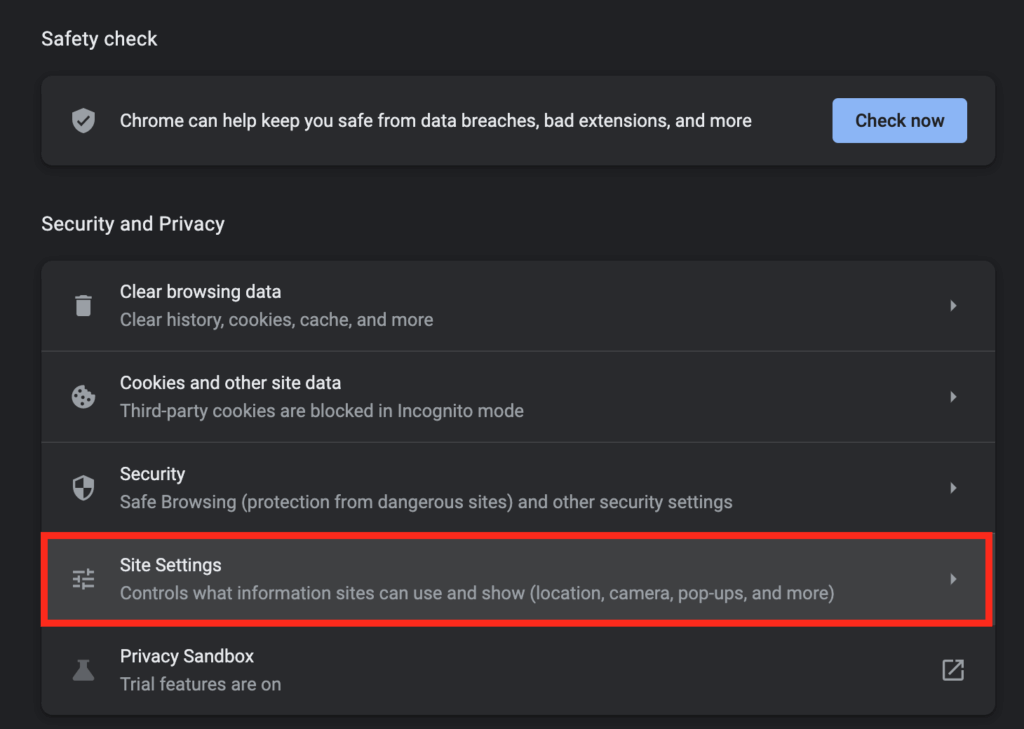
  1. Under “Security and Privacy,” click “Site Settings.”
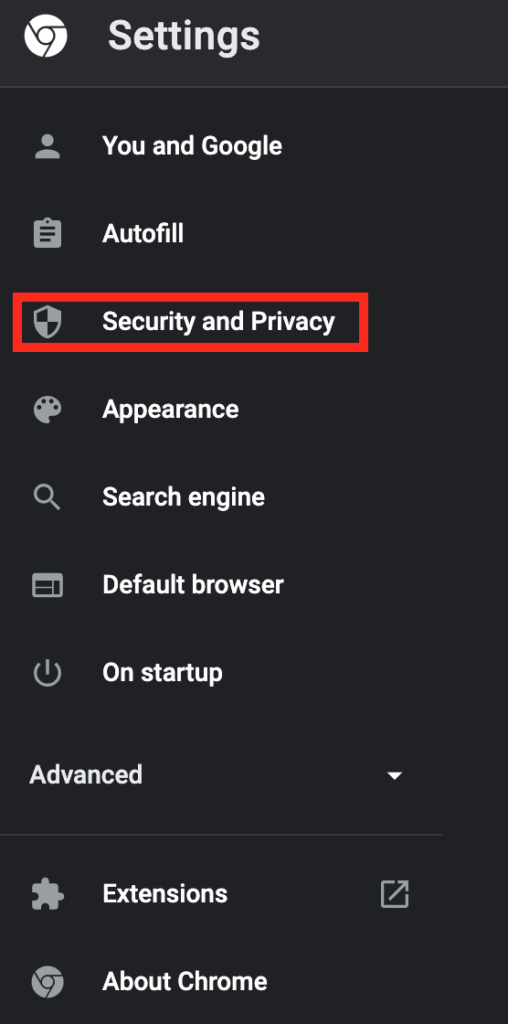
Userlytics - How to Enable Cookies in your Browser - Click Security and Privacy
Userlytics - How to Enable Cookies in your Browser - Click Site Settings
  1. Click “Cookies and site data.”
Userlytics - How to Enable Cookies in your Browser - Click Cookies and site data
  1. From here, you can turn on cookies by selecting the button next to “Allow all cookies.”
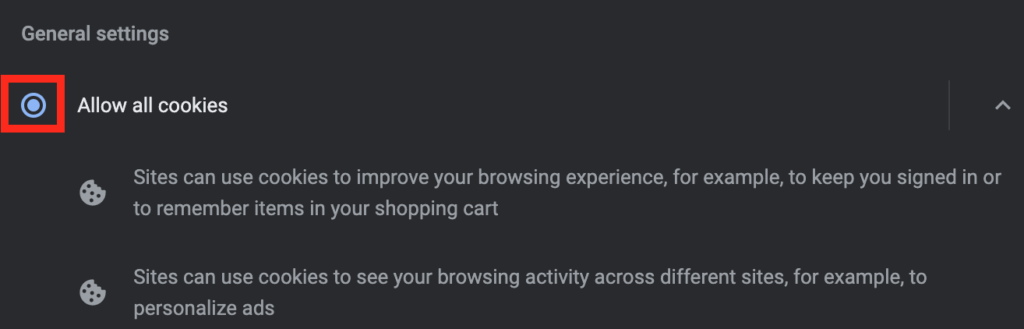
Userlytics - How to Enable Cookies in your Browser - Choose Allow all cookies

See more detailed instructions here.

How to Enable Cookies on Microsoft Edge:

  1. Open Microsoft Edge.
Microsoft Edge icon
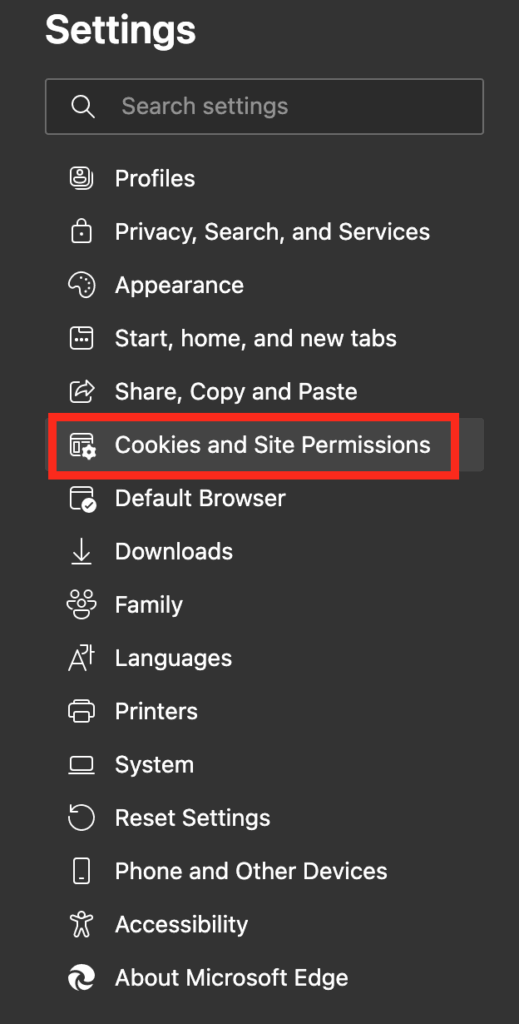
  1. Select Menu (3 dots icon on top right corner of the browser) > Settings > Cookies and Site Permissions.
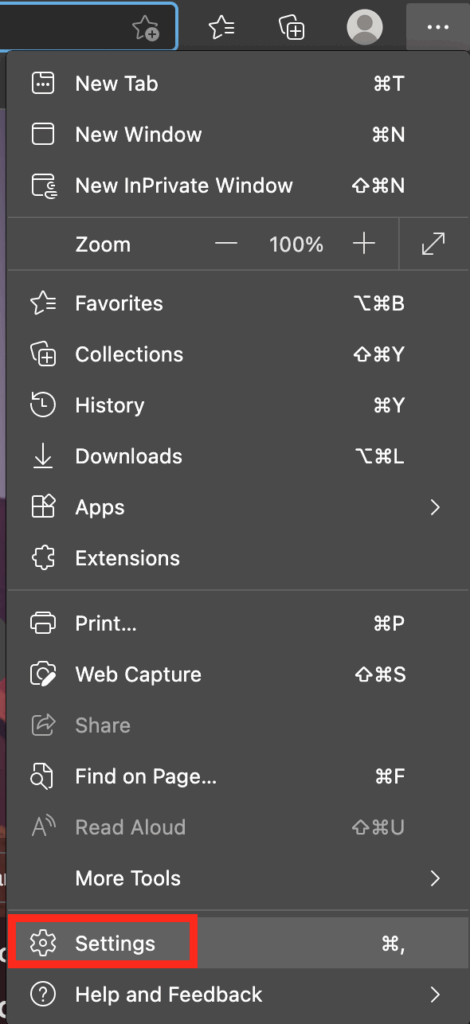
Userlytics - How to Enable Cookies in Microsoft Edge - Click Settings
Userlytics - How to Enable Cookies in Microsoft Edge - Cookies and Site Permissions
  1. Select “Manage and delete cookies and site data.”
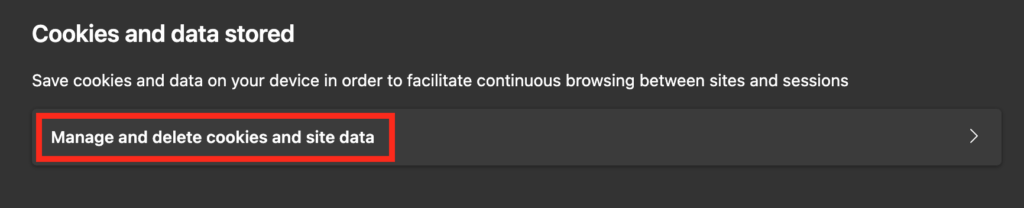
Userlytics - How to Enable Cookies in Microsoft Edge - Manage and delete cookies and site data
  1. Turn on “Allow sites to save and read cookie data (recommended)” to unblock cookies.

Userlytics - How to Enable Cookies in Microsoft Edge - Allow sites to save and read cookie data

See more detailed instructions here.

Didn’t find what you were searching for?

Related posts:

Audiences and Filters
May 25, 2026

How to Use BYOU Panel Management to Invite and Manage Your Own Participants

Learn how to use BYOU Panel Management to import, validate, and send email invitations to your own study participants.
Audiences and Filters
May 12, 2026

How to Prepare Your CSV Contact File for BYOU Studies

Learn how to prepare your CSV contact file for BYOU studies. Follow our formatting rules and system limits for a seamless participant import.
Clients
March 23, 2026

Getting Started with AI Annotations

AI Annotations automatically identify key moments from your user sessions, getting you from raw data to insights faster.
Audiences and Filters
February 9, 2026

How to Use the New Study Builder with Quotas

Guide to the Userlytics study builder with quotas. Set up and launch your research project for multiple audiences with ease.

Ready to Elevate Your UX Game?