




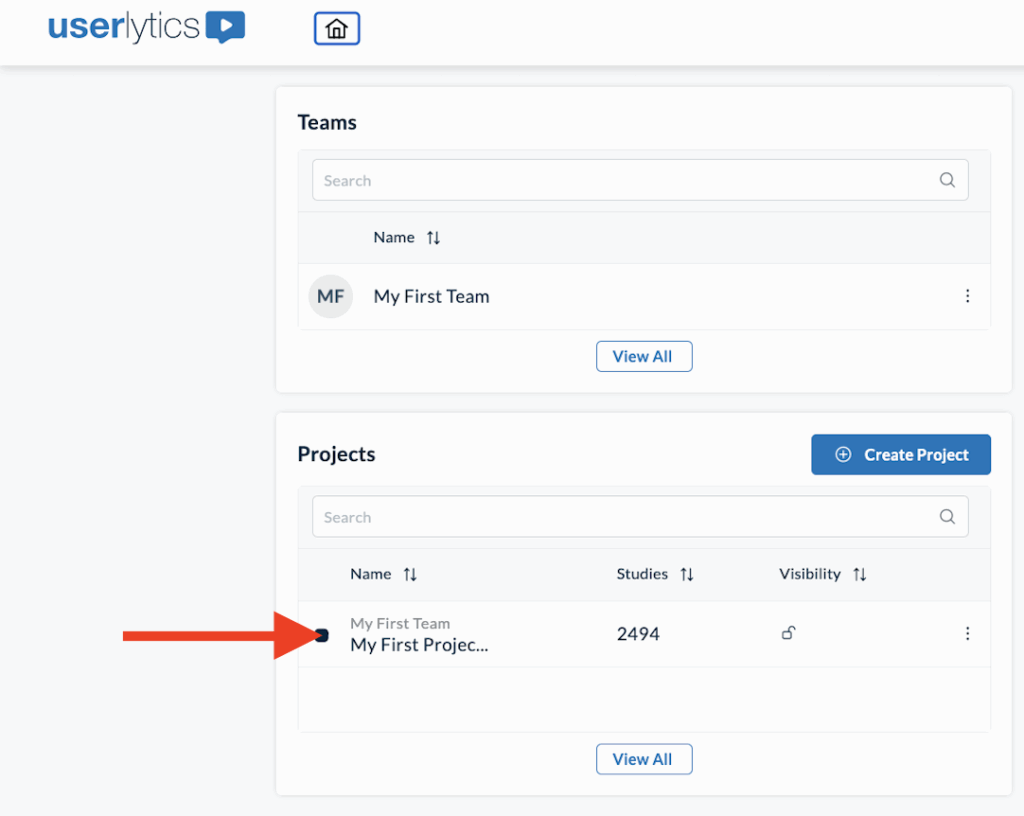
Highlight Reels are a simple and effective Userlytics reporting tool that allow you to automatically compile several related annotations in the same video clip, grouped by theme (tag) or by the study activities your participants complete. You can even automatically assemble clips with common theme/tag from multiple studies. Highlight reels make it easy for you to share key study insights with your colleagues and stakeholders, and can be accessed by navigating to the project folder where your studies are stored, and then selecting the “Highlight Reels” menu option from the left side panel menu
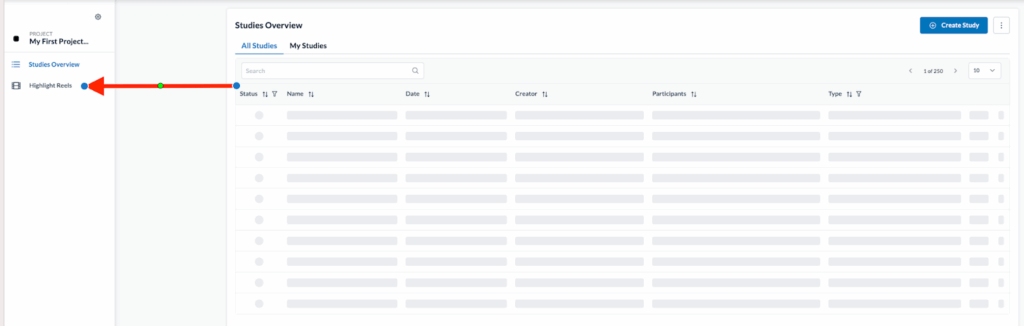
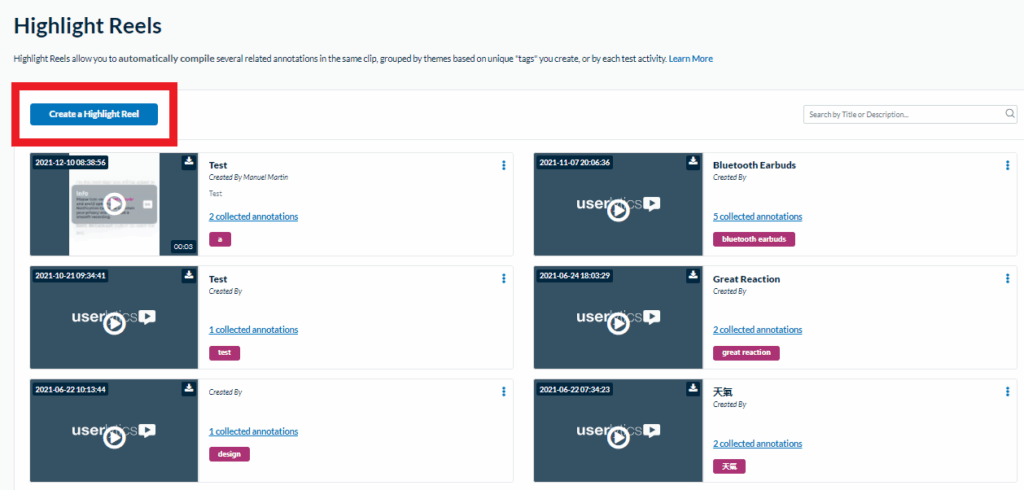
Here, you will find a list of highlight reels you have created. To create a highlight reel, select the blue button that says “Create a Highlight Reel.”
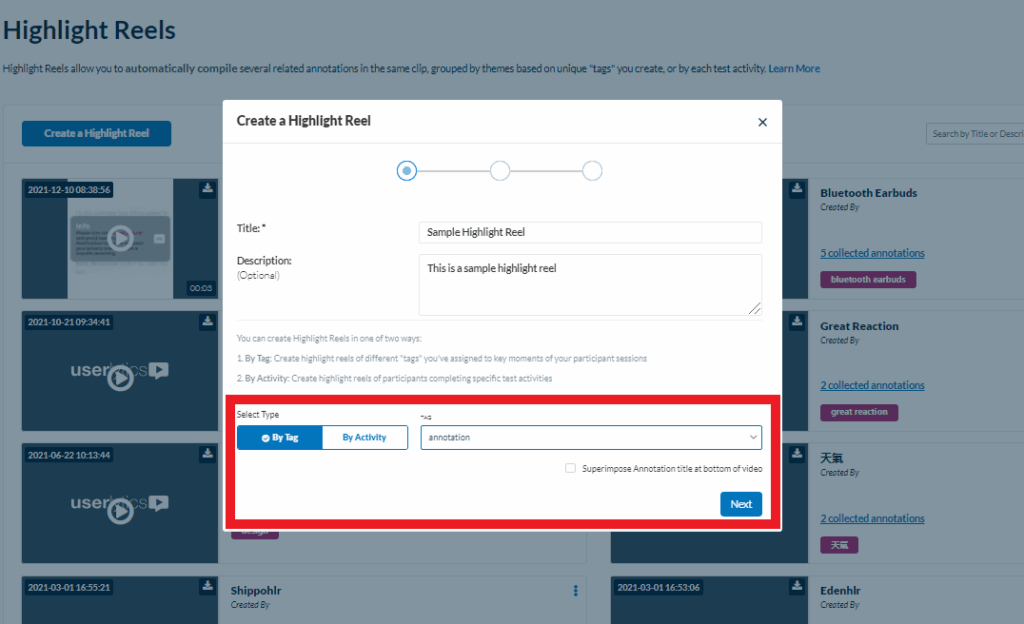
After clicking this button, a new window will appear where you must specify whether your highlight reel will be composed based on tags you assigned when creating annotations, or by study activities. Additionally, here is where you will create a name for your highlight reel, a description, and specify whether or not you want your annotation title to be superimposed at the bottom of your highlight reel, so that teammates and stakeholders will quickly know what the subject of your highlight reel is.
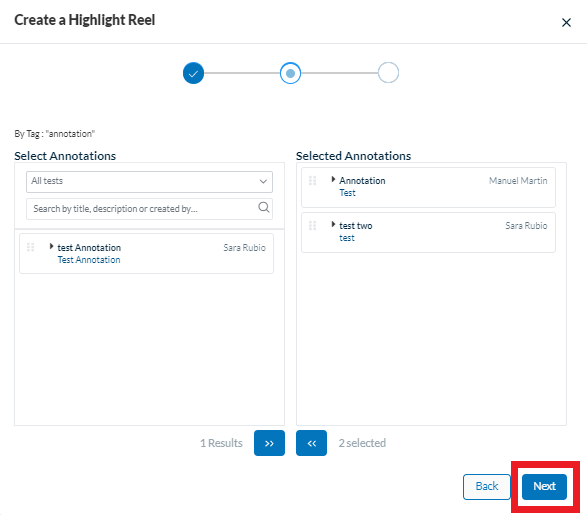
Next, you will select what annotations you want to include in your highlight reel based on the tag or activity you selected. Simply drag the desired clips from left to right to include them in the highlight reel. Once you have compiled all the clips you want to include in your reel, select the “Next” button.
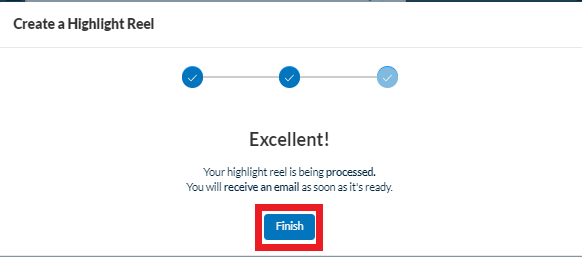
Next, a new window will appear stating that you will be notified as soon as the highlight reel has finished processing. Select the “Finish” button once you are ready.
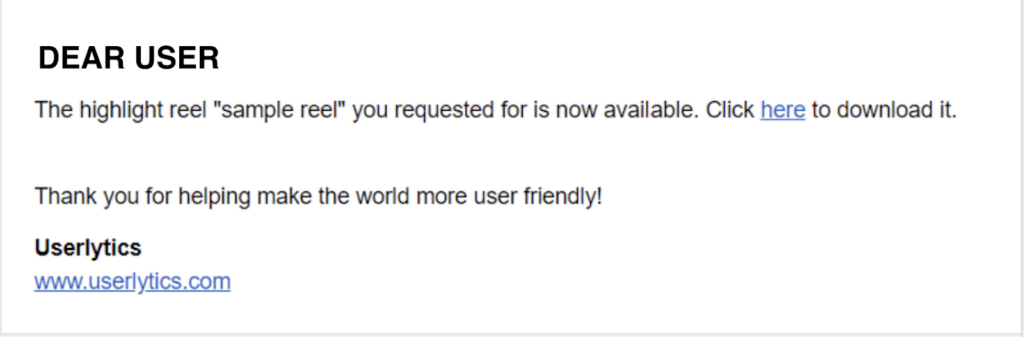
In a few moments, you should receive an email letting you know that your highlight reel is ready and available for download.