Welcome to the brand new AI Insights section within the Userlytics Study Builder!
AI Insights is the new conversational interface where you can interact directly with Userlytics AI to discover themes and patterns across all your study sessions.
This brand new feature can be found under the menu tab called “Insights & Annotations,” which centralizes both AI-generated Insights and manual annotations within each qualitative study.
It provides a unified workspace for reviewing high-level findings and detailed observations, helping research teams analyze user behavior, identify patterns, and share results efficiently.
This guide will take you through how to use the AI Insights feature. Let’s dive in!
Getting Started with AI Insights
To begin using AI Insights, ensure your study has completed sessions with transcripts available.
- Navigate to your Study: Open the specific study you wish to analyze.
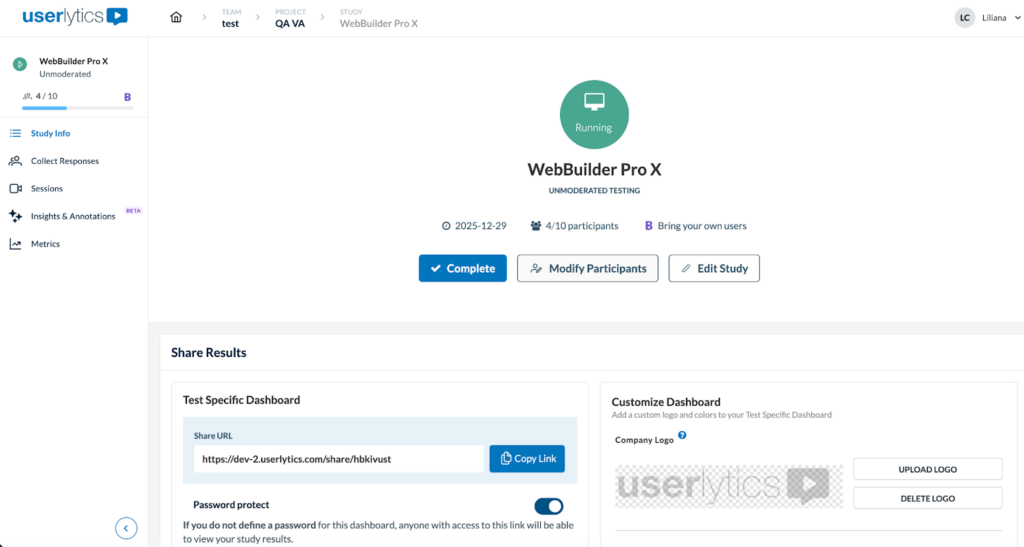
- From the left-hand sidebar menu, select Insights & Annotations. Note that this new space consolidates and improves upon the previous “AI UX Insights” and “Annotations” pages.
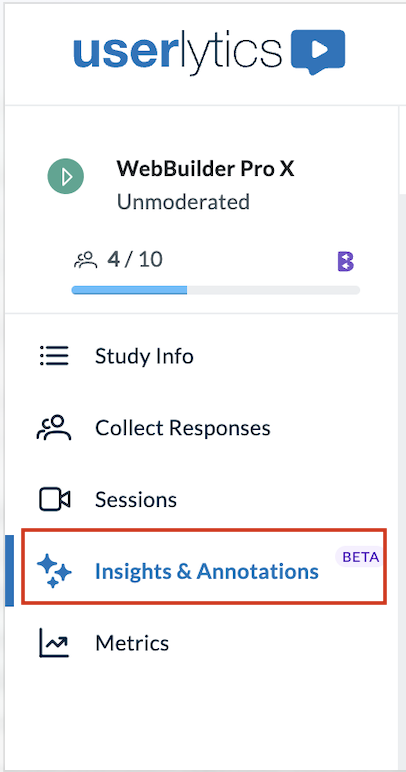
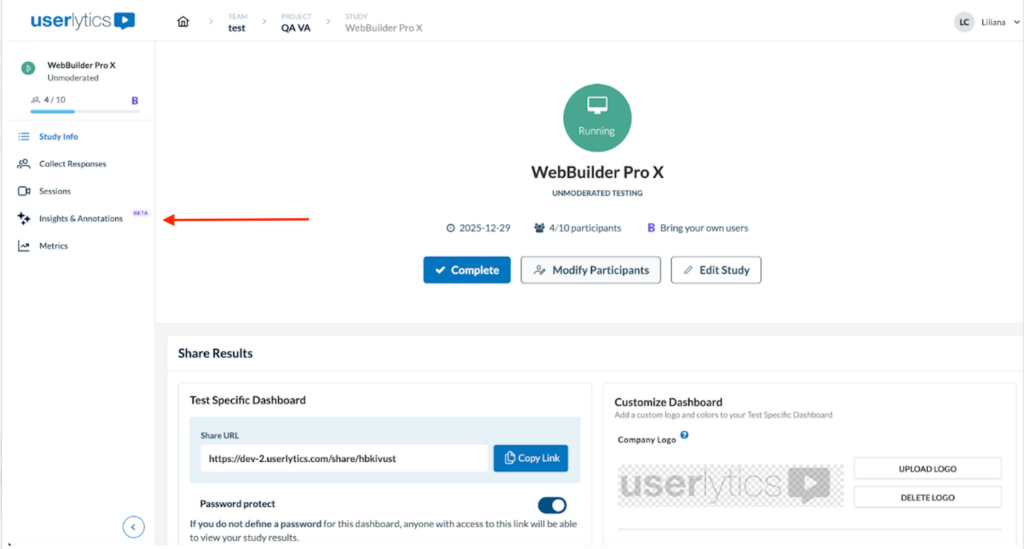
Please note: AI Insights relies on existing study data. If no transcriptions or annotations are available, the system will prompt you to analyze sessions first.
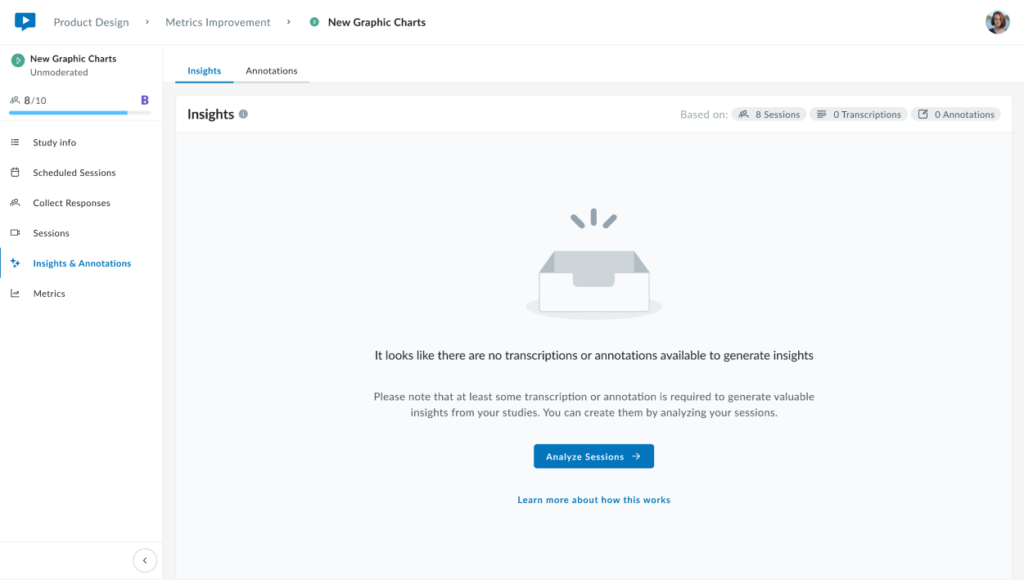
In this scenario, you will see two helpful options:
- Analyze Sessions Button: This will redirect you to the Video Analysis section, where you can generate transcriptions or create manual annotations to kickstart the AI engine.
- “Learn more about how this works”: This link will open a dedicated Help Center article providing deeper technical details on the data requirements for AI Insights.
Pro Tip: For the best results, we recommend generating transcriptions for all sessions before visiting the Insights tab. This allows the AI to detect patterns and emerging themes across your entire participant pool rather than just a single session.
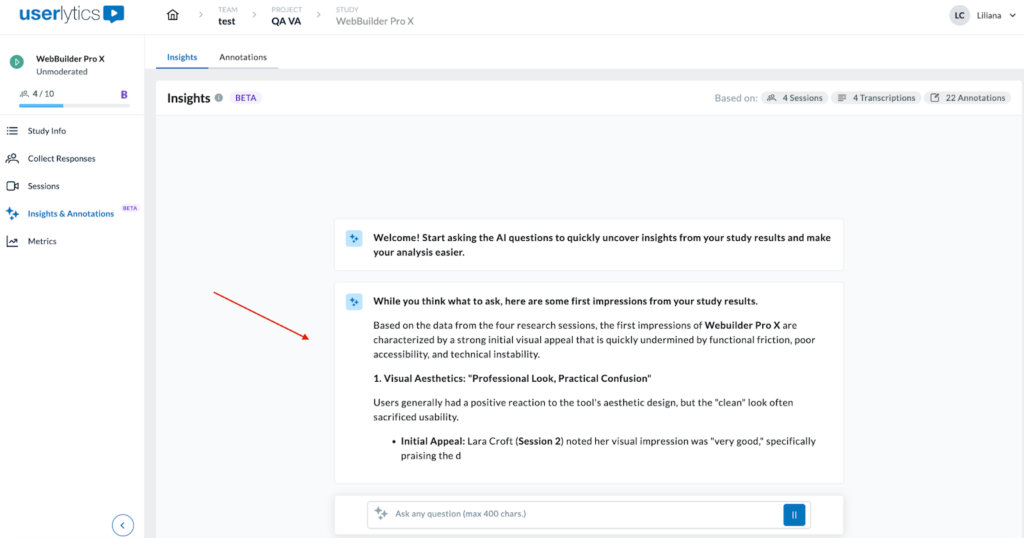
- Upon entering the page, the system will provide a welcome message and will automatically begin generating a first insight.
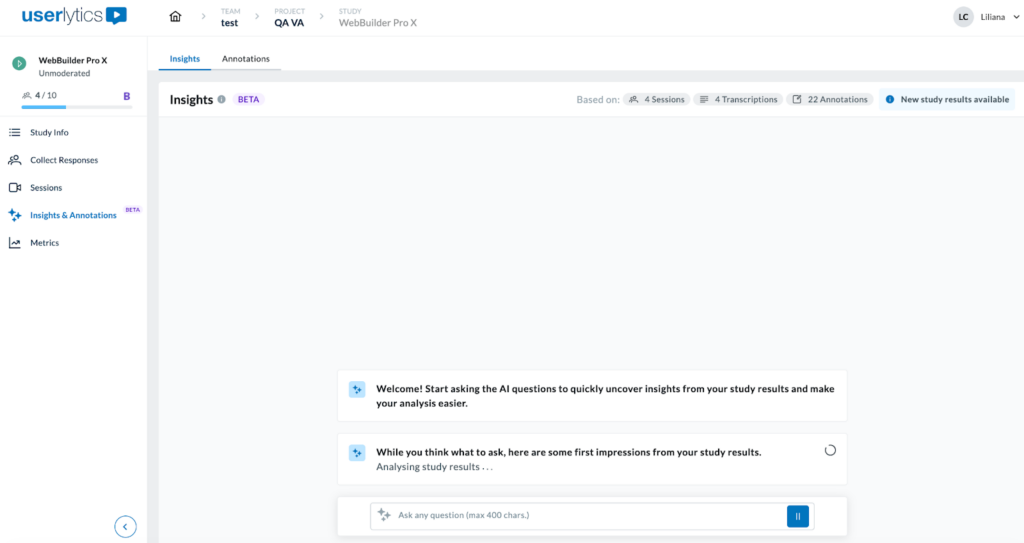
- This initial summary pulls from all available study data, including sessions, transcriptions, and annotations, to highlight immediate themes like visual appeal or functional friction.
At the top of the screen, the header displays contextual information about the study data used to generate the insights. The indicators include:
- Sessions: number of completed sessions by participants.
- Transcriptions: total transcripts generated.
- Annotations: number of annotations created in the study.
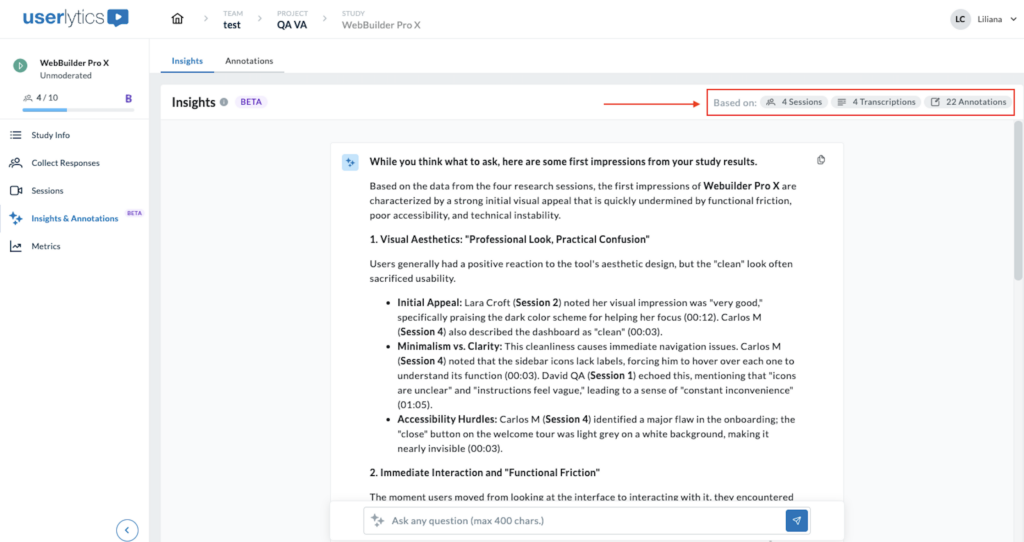
These tags are interactive and hovering over each tag displays a tooltip explaining the count (e.g., “22 annotations generated in this study”).
Please note that these values update automatically whenever new data becomes available.
When new study results are detected, a blue “New study results available” message appears in the header.
- This message is shown when new sessions, transcriptions, or annotations have been added since the last page visit.
- It remains visible until a new insight is generated using the updated data.
5. Once the system has provided an initial summary, now’s your time to begin interacting with the AI assistant to uncover deeper insights.
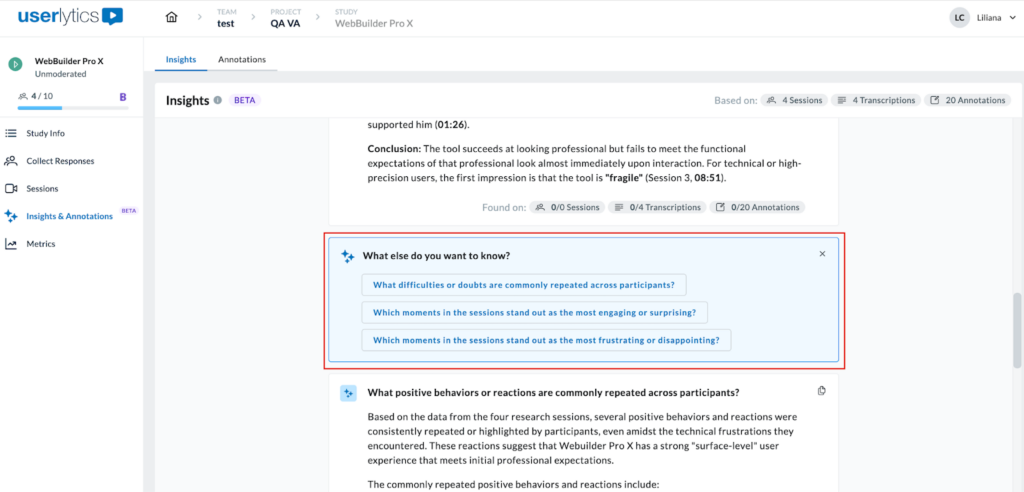
As shown in the workspace below, there are two ways to guide your discovery:
- Use Suggested Questions: Under the section “What else do you want to know?”, click on one of the pre-set prompts, such as “What difficulties or doubts are commonly repeated across participants?” to trigger a targeted analysis.
Alternatively, you can begin asking your own questions. To do so, use the conversational chat bar at the bottom and input your question (Max. 400 characters).
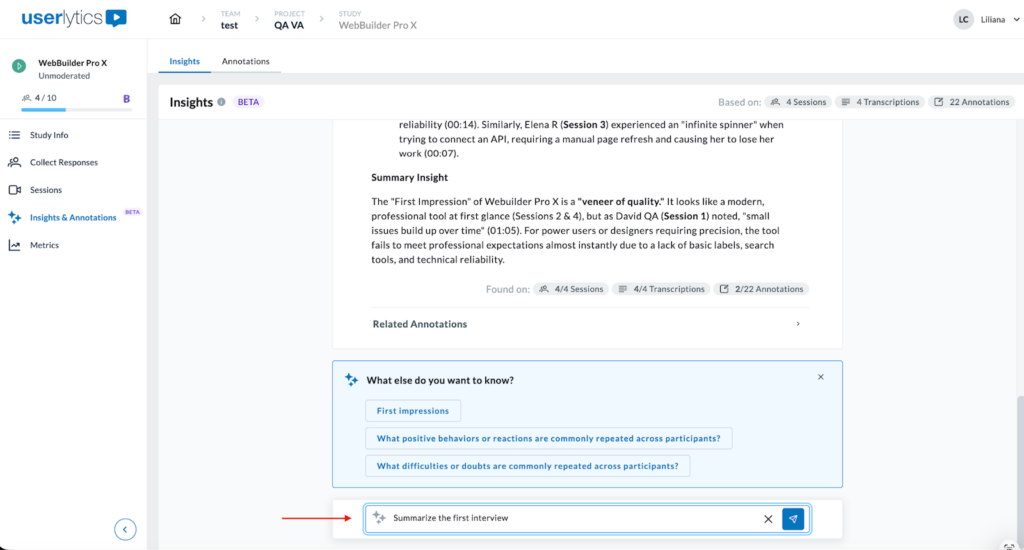
Once you input your question, press Enter or the Send icon to generate the insight. The system will begin analyzing the study results to provide a cohesive answer.
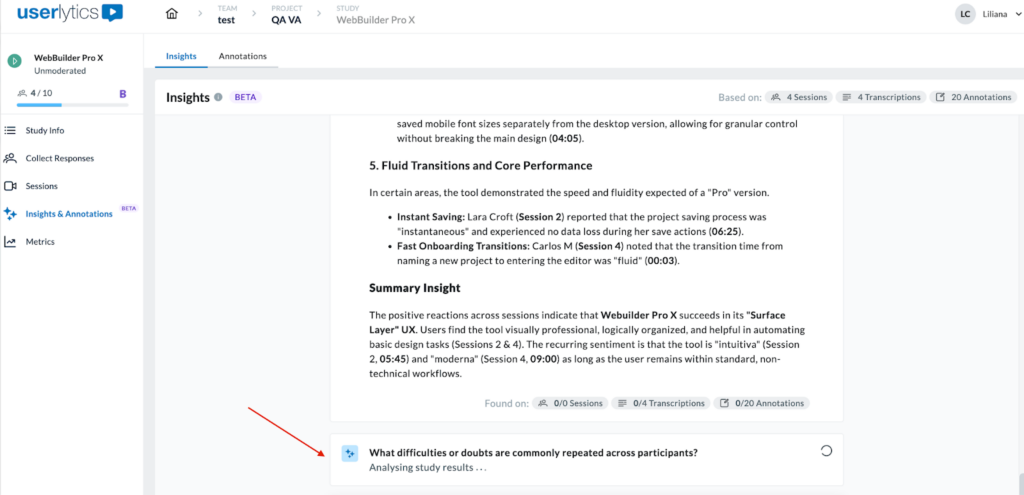
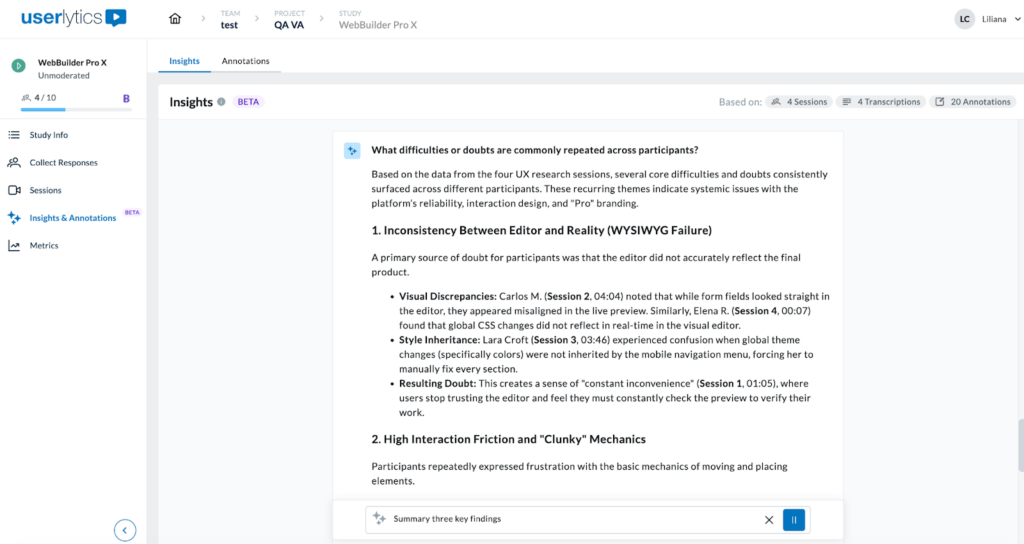
The AI assistant will structure its findings into distinct thematic categories, utilizing bullet points and bold formatting to highlight critical UX patterns, usability friction, and participant sentiment.
At the bottom of every insight block, you will find a “Found on” verification bar. This provides total transparency by showing exactly where in the Sessions, Transcriptions, and Annotations the information was gathered from.
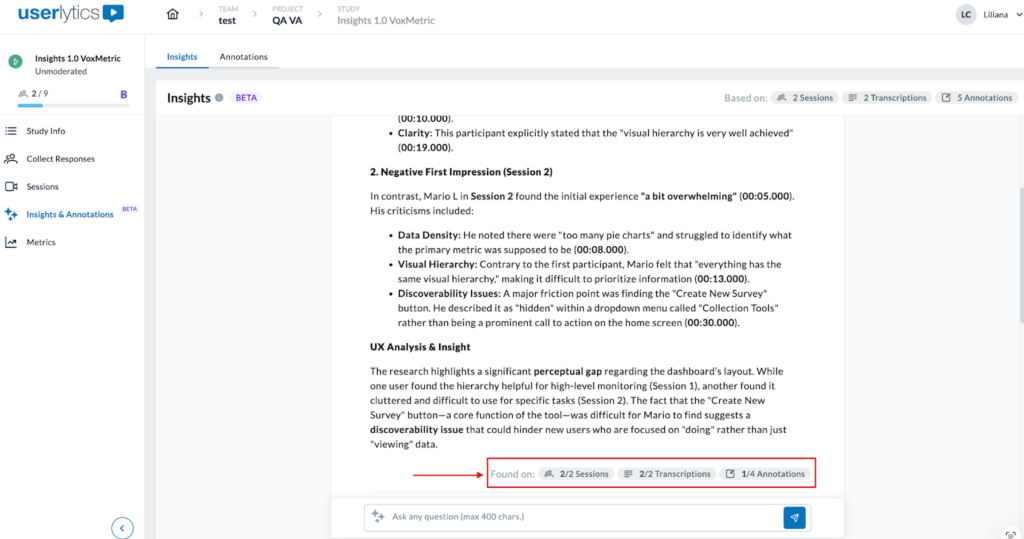
Additionally, each cited observation within the text includes a precise timestamp and session it was gathered from.
Continue to refine your analysis through the conversational interface. By entering subsequent prompts, you can drill down into specific sub-themes or request more granular detail on previously identified issues. All AI-driven interactions are converted into documented knowledge within the platform.
Feature Access & Plan Tiers
AI Insights (Beta) is available for teams that have activated the AI UX Insights feature. If you navigate to the Insights tab and the feature is not included in your current plan, you will encounter a Restricted Access State.
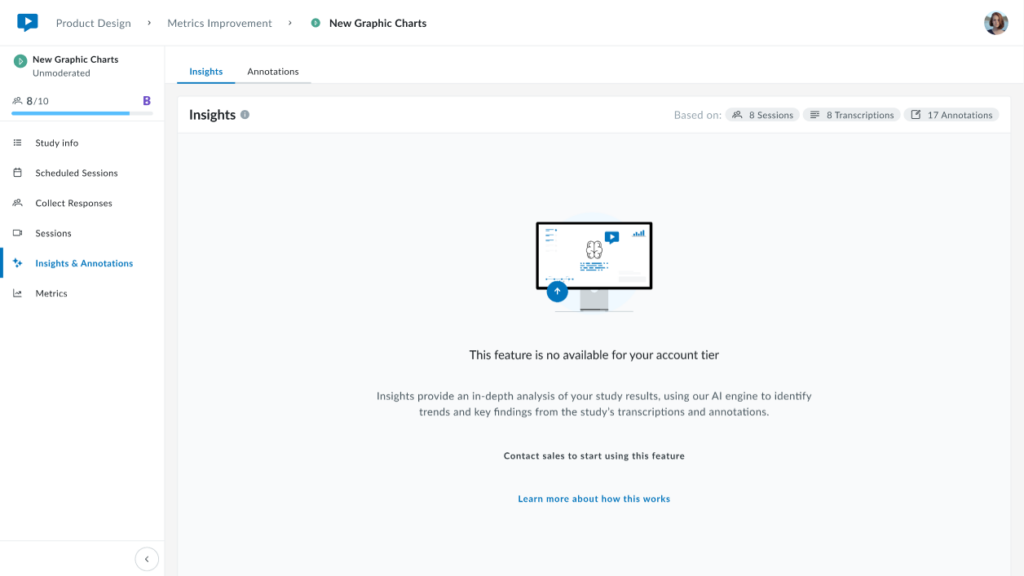
To unlock this tool, a “Contact Sales” link is provided, which redirects you to our standard request flow for plan activation.
Note: If you believe you should have access or would like a trial, please reach out to your Account Manager directly to discuss your plan options.