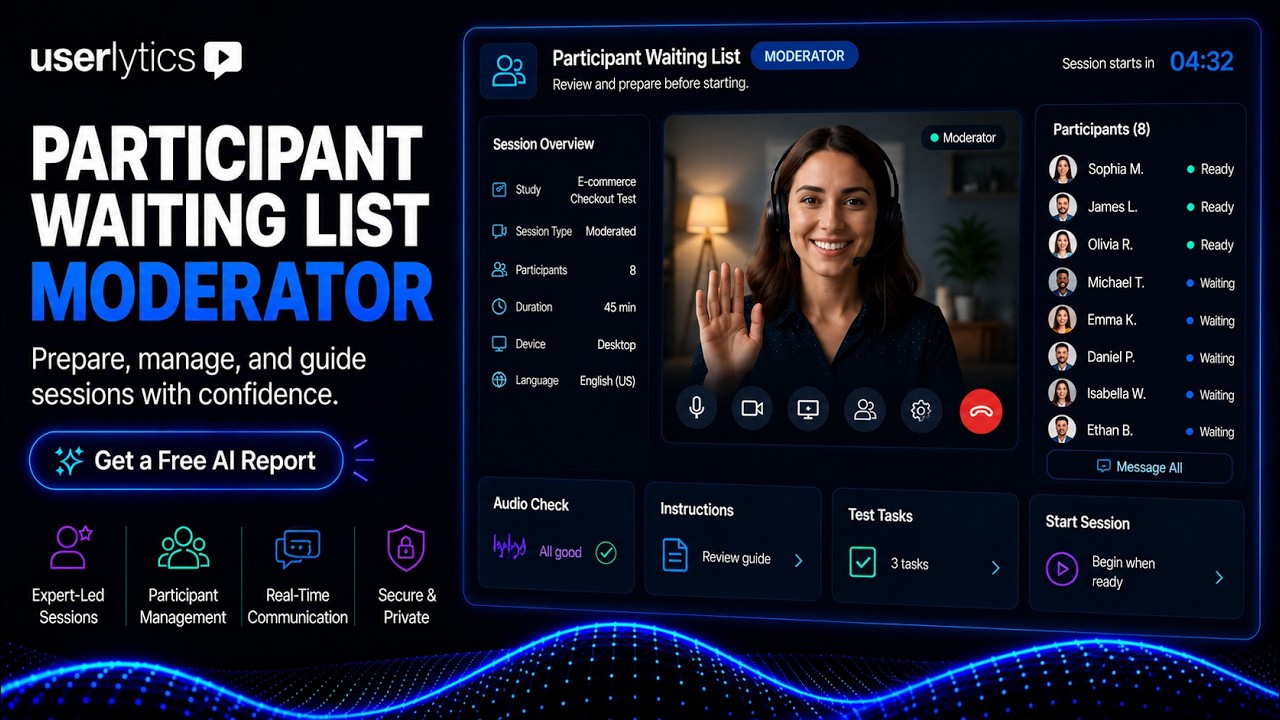
The Participant Waiting List lets you queue more than one participant into a single moderated BYOU session slot. If a participant doesn’t show up or isn’t the right fit, the moderator can bring in the next person in line instantly, so the slot is never wasted.
Available for Moderated BYOU studies.
How the Participant Waiting List Works
The Participant Waiting List follows a simple three-step workflow:
- Configure the waiting list when scheduling your study.
- Participants book available session slots and join the waiting list.
- Moderators manage the participant queue during the Live Conversation.
Phase 1: Configuring the Participant Waiting List
When creating the schedule for your moderated study, you can define how many participants are allowed to book the same session slot.
From the Schedule tab, you’ll find a new Waiting List setting.
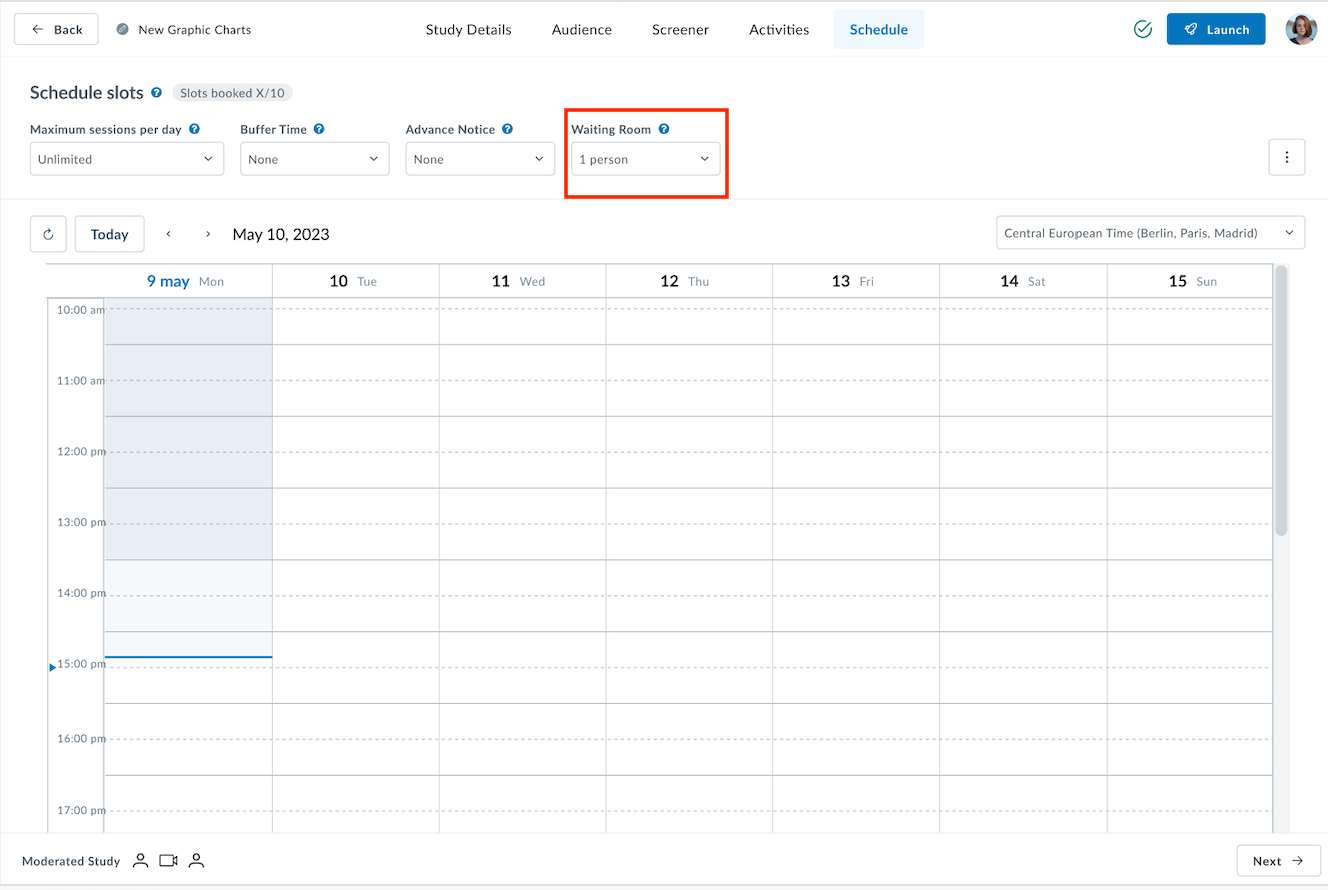
Researchers can configure:
- Maximum participants per session slot (up to 10)
- Buffer time
- Advance notice
- Number of participants in the waiting room
- Calendar slots
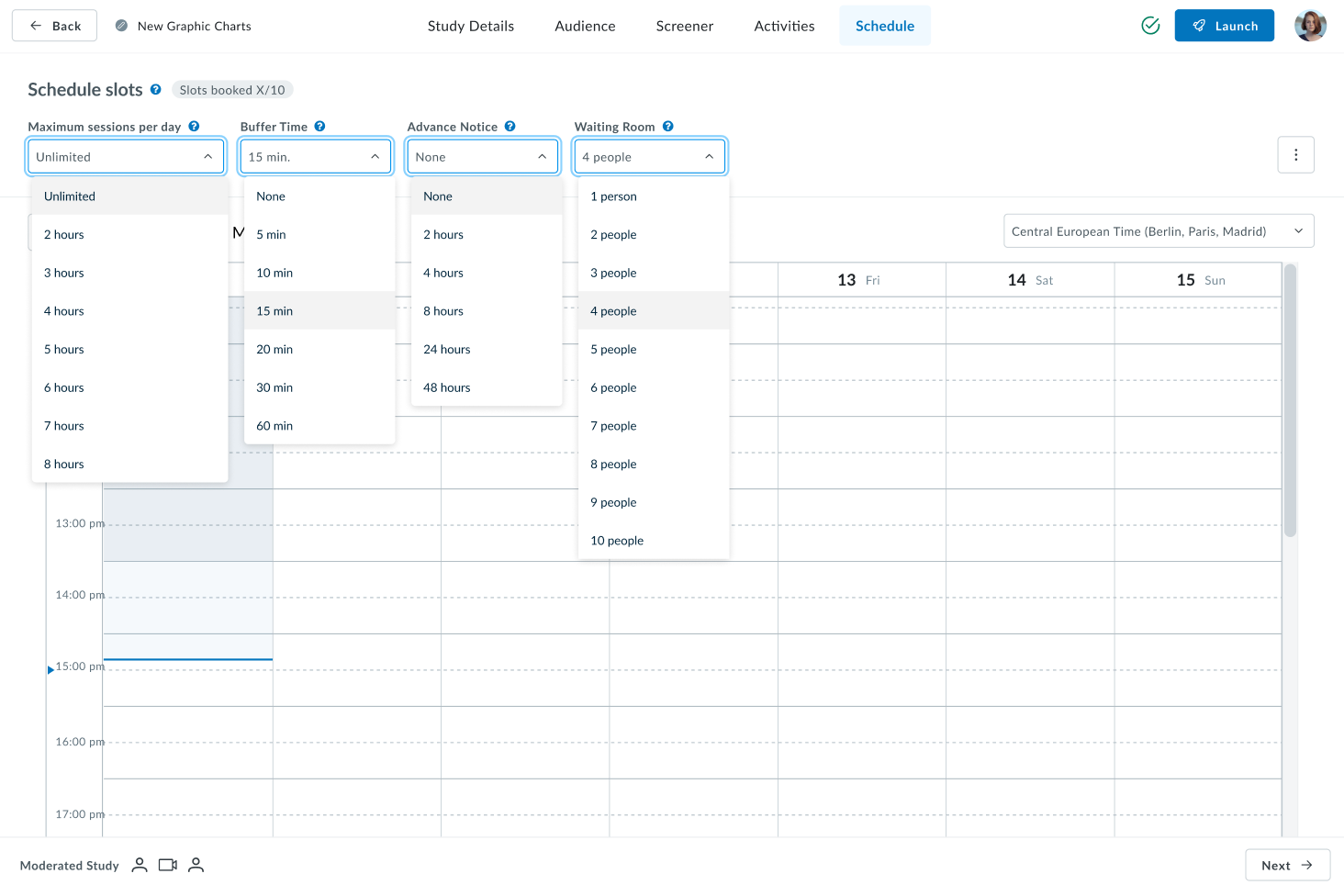
Once configured, the system automatically allows multiple participants to be booked into the same time slot, up to the maximum you set.
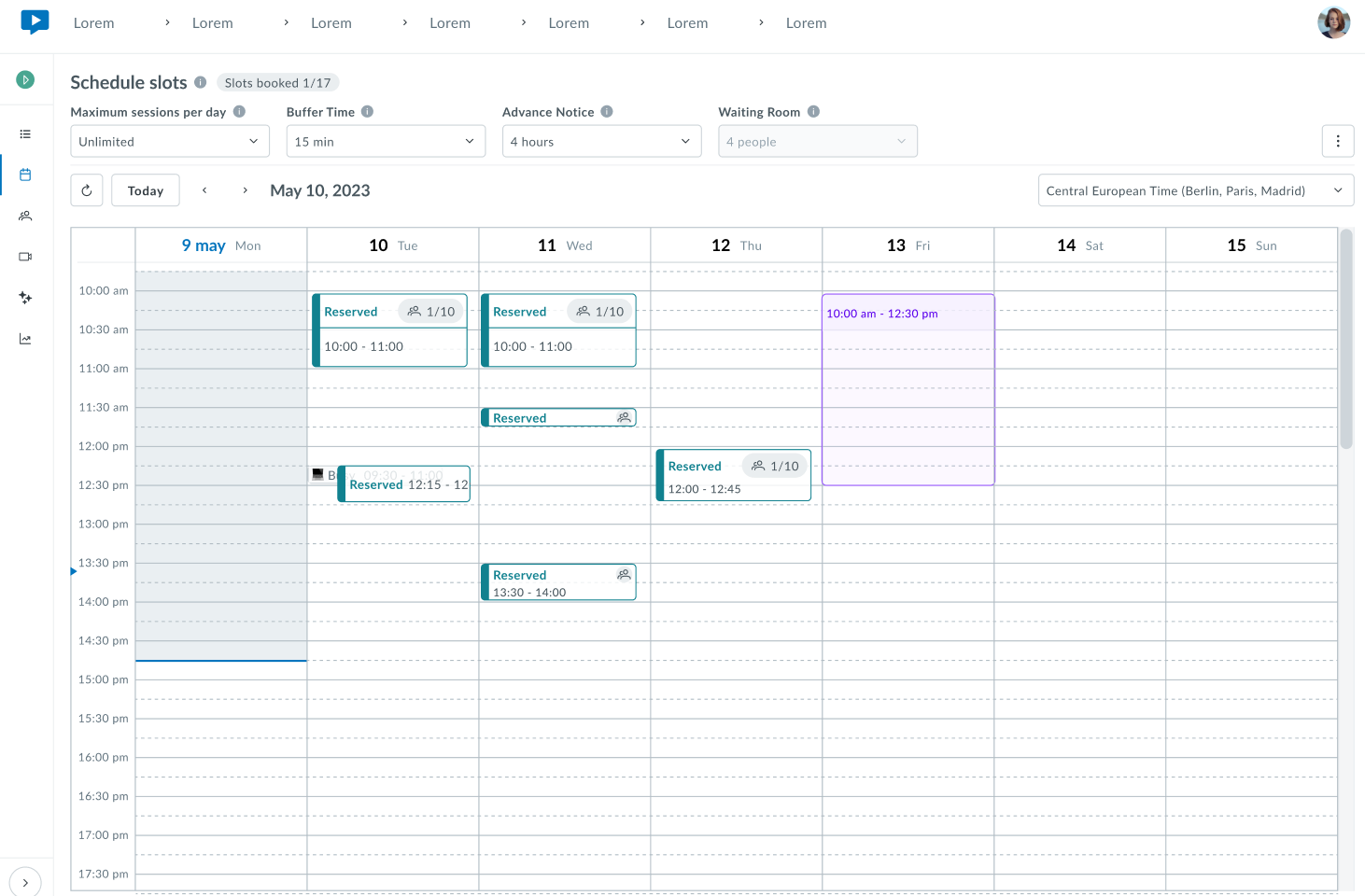
Hover over each slot to see session details such as the number of testers confirmed for session, session links, and to start a session.
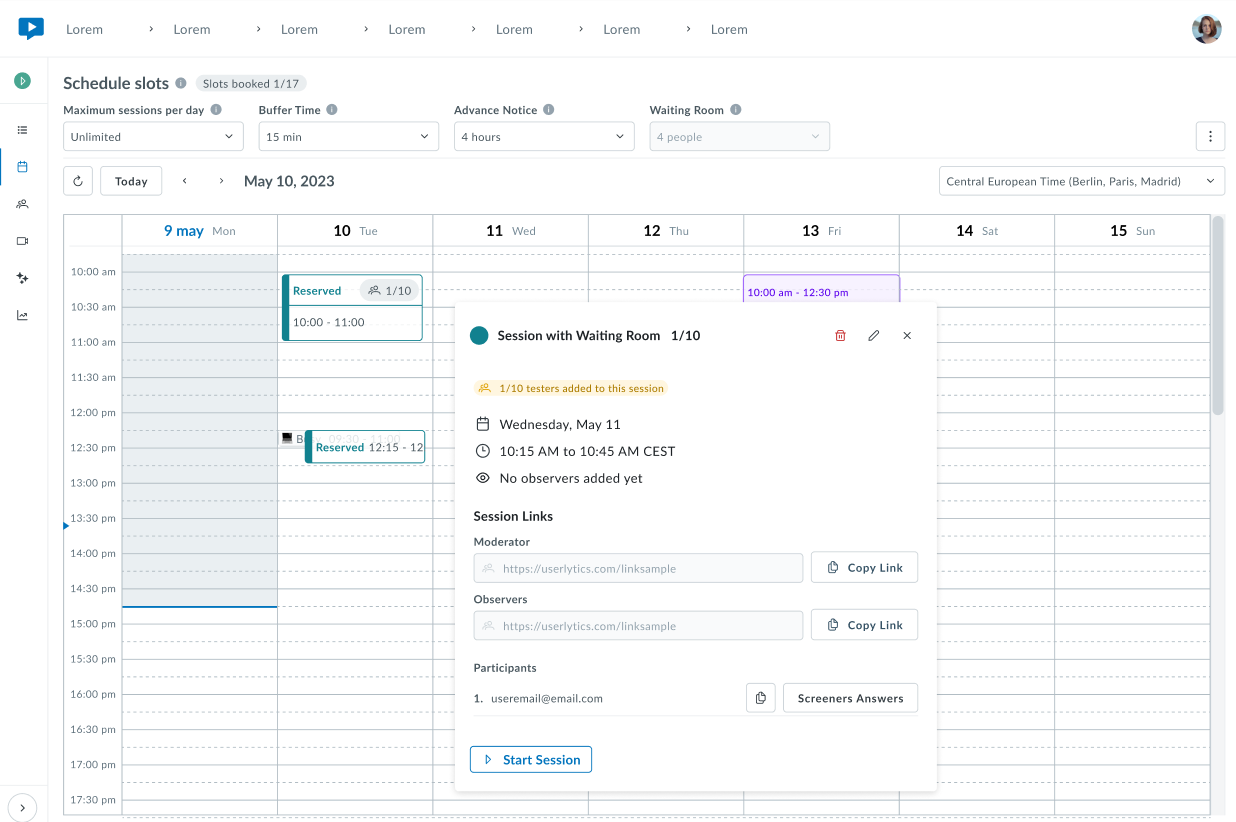
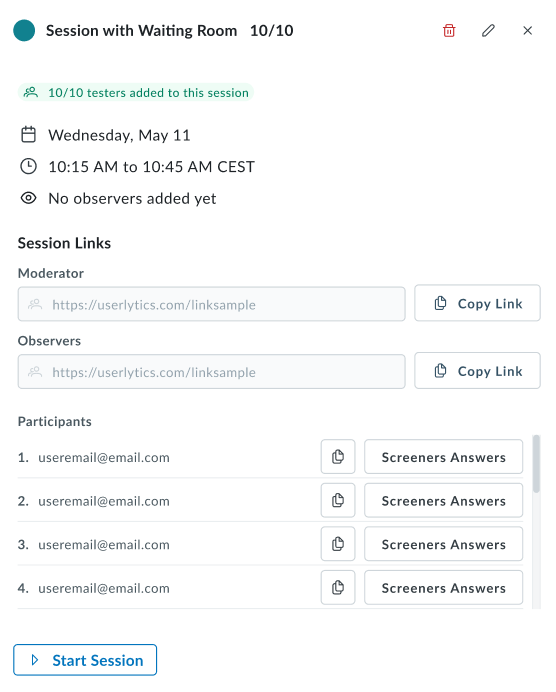
Once every queued spot is filled, the tester count turns green. This gives moderators an at-a-glance read on whether a session still needs participants or is fully backed up.
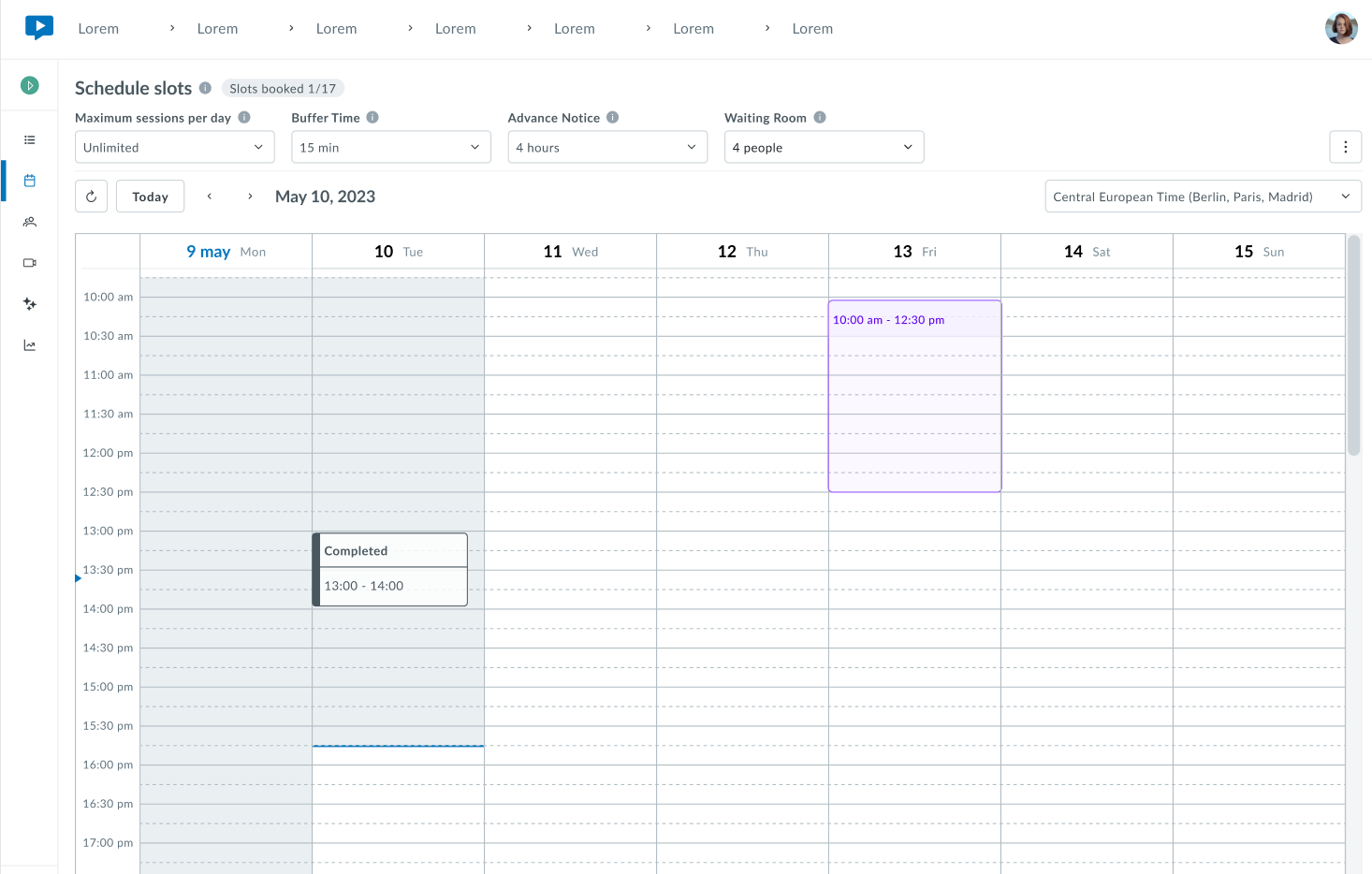
Once a session has taken place, the system automatically marks it as “Completed”
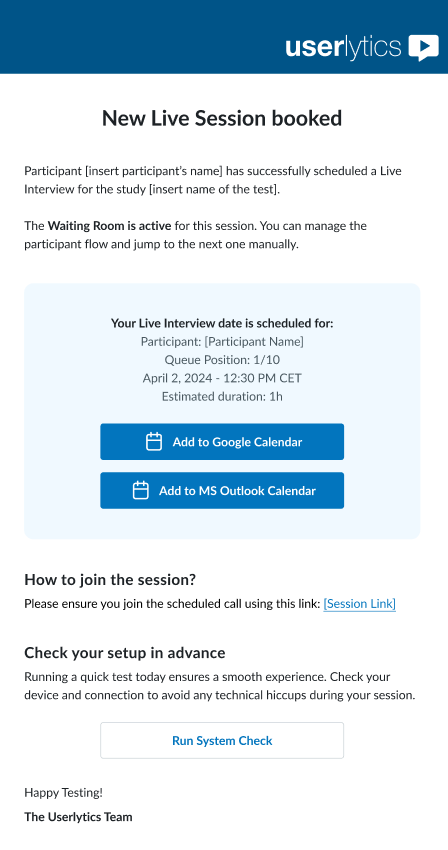
When a participant books a session slot, the moderator will receive a “New Live Session booked” notification confirming the participant’s name, the study, and that the Waiting List is active for the session, showing the queue position.
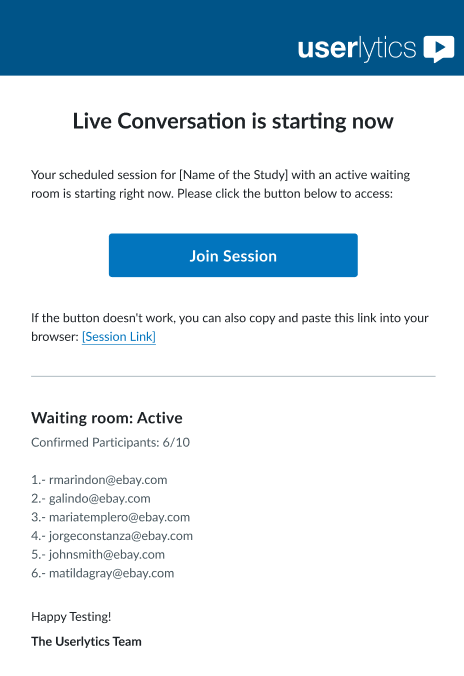
When a queued session is about to begin, Moderators will receive an email prompting the session is about to start, and detailing confirmed participants in the waiting room.
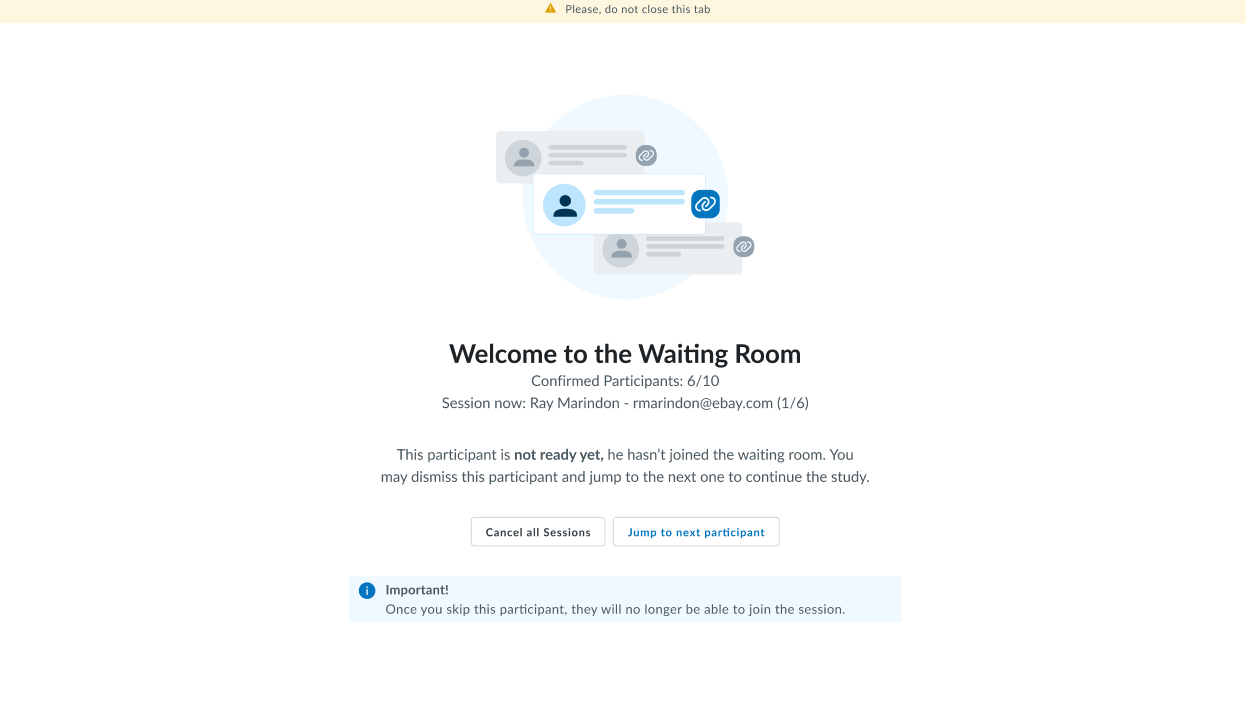
Once a queued session starts, the moderator sees a “Welcome to the Waiting Room” screen showing the Confirmed Participants count (for example 3/3). If a participant is not ready, the moderator will be prompted and given the option to skip to the next participant.
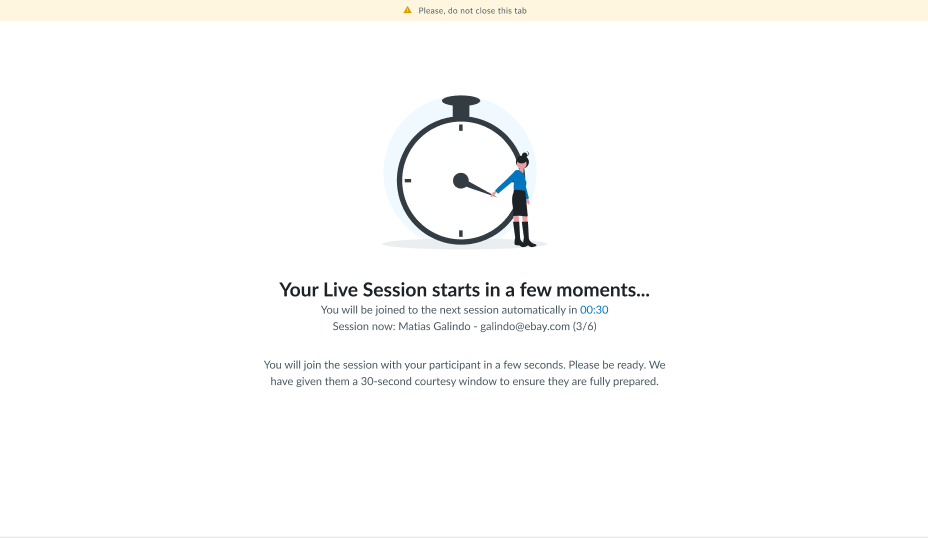
Once the next session is ready, a countdown screen appears showing the participant’s name, email, and queue position, plus a live timer. Keep the tab open. You’ll be joined into the session automatically once the countdown ends.
After a queued session wraps, Userlytics sends the moderator a summary confirming the session with the participants who have successfully completed the study, who was skipped (if applicable), and those not admitted, along with a link to review the recording.
In the event that the waiting room had no valid participants, the following screen will appear alerting you that the session has ended and no recording was saved, since every queued participant was skipped.
Phase 2: Participant Booking
Participants book sessions through the standard scheduling experience.
When selecting a session, they can:
- View available dates and times
- See the session duration
- Book according to their local time zone
- Review device requirements before scheduling
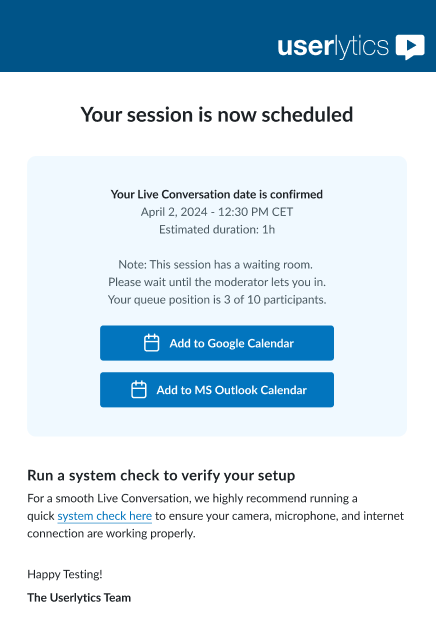
Once they book, they will receive an email confirmation:
Phase 3: Joining the Waiting Room
After booking, participants are directed to a Waiting Room before their scheduled Live Conversation.
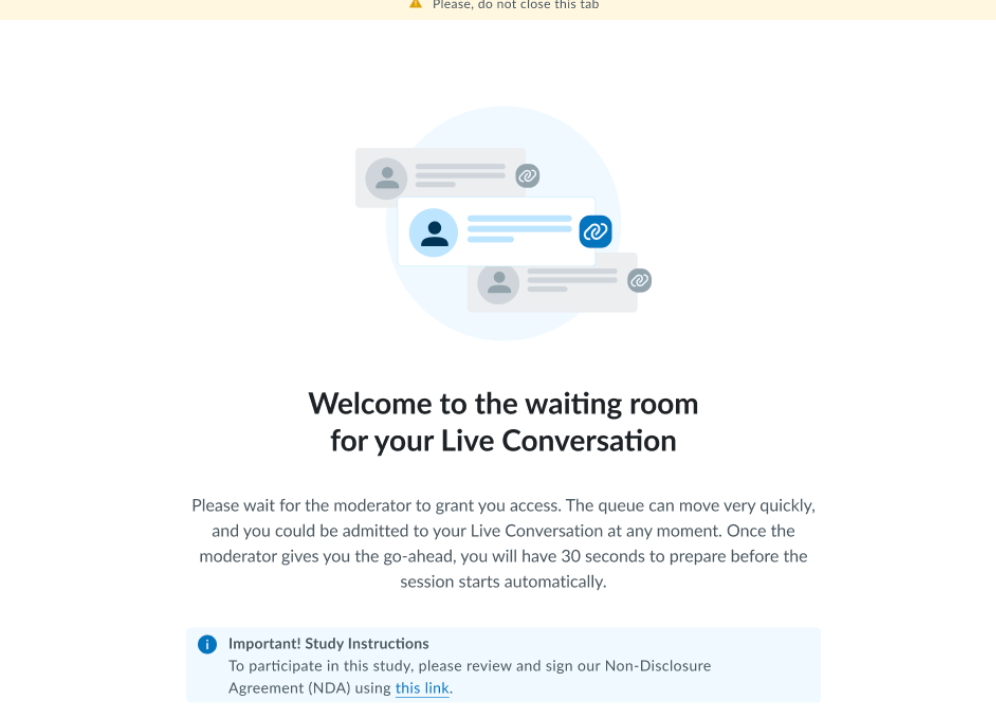
Once admitted, a window will pop up with the session link.
Tester view
Moderator view